Recently I was staring at an SSIS data flow where a downstream component kept rejecting rows with an error that implied the incoming value was malformed. On paper the mapping and the expression looked correct, so I “fixed” the expression a few times, re-ran, and got the exact same error each time. Classic sign that I was debugging my assumptions instead of the data.
What finally cracked it was not staring harder at the XML or the mappings. It was the SSIS Data Viewer, a built-in debugging tool I do not reach for often enough. This post is mostly a reminder to myself: when a data-flow value looks wrong, stop guessing and watch the actual rows. (The specific component gotcha that was actually to blame is a story of its own, and a separate post.)
Bottom line
- If an SSIS data flow component is failing because of a value, put a Data Viewer on the path going into that component before changing expressions or mappings.
- Treat it like a breakpoint for rows: run the package, inspect the actual runtime values, then decide whether the problem is upstream data or downstream component configuration.
- Disable the Data Viewer when you are done so future runs do not pause unexpectedly.
What I observed
- A source produced rows and passed them downstream.
- A transform built the value the destination cared about.
- The destination kept failing with an error that made it sound like my value was garbage.
Everything looked correct in the editors, and re-running with the same “obvious” fixes just reproduced the same error. That is exactly the moment to stop editing config and go look at the data.
Stop guessing: enable the Data Viewer
A Data Viewer pauses execution on a path (the arrow between two components) and shows you the real rows and column values flowing through it at runtime. It is the fastest way to prove what a source, expression, or transform is actually producing.
If you come from application development, the mental model is simple: a Data Viewer is a breakpoint for your data flow. Instead of pausing on a line of code and inspecting variables, you pause on a path and inspect the rows moving through it. Same idea, applied to the pipeline.
How to use it:
- Open the Data Flow tab of the Data Flow Task.
- Right-click the path (the arrow) going into the component you suspect, and choose Enable Data Viewer.
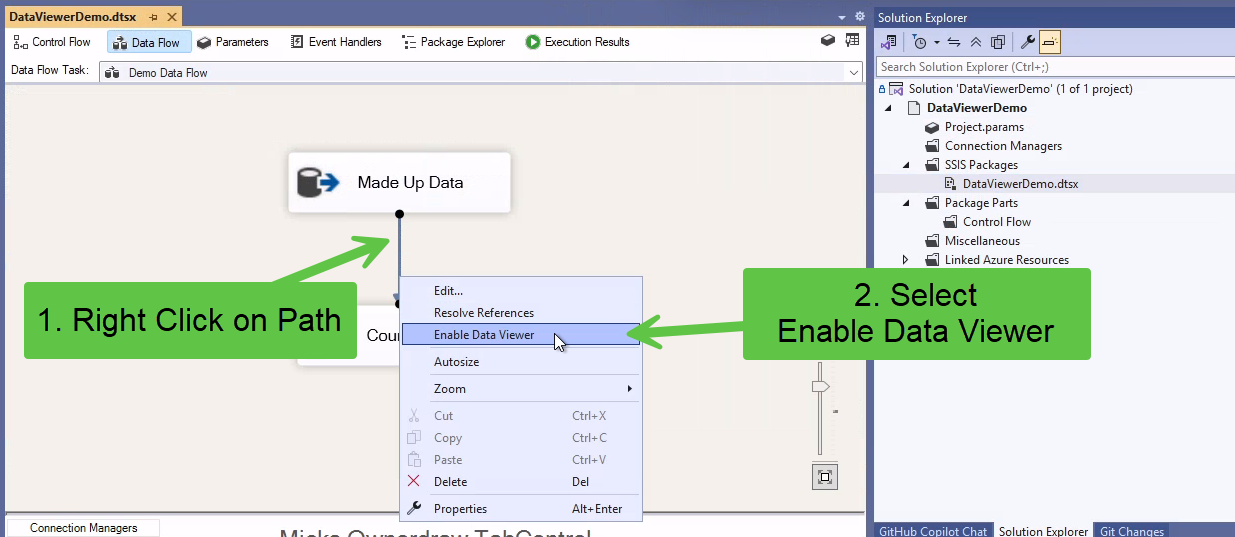
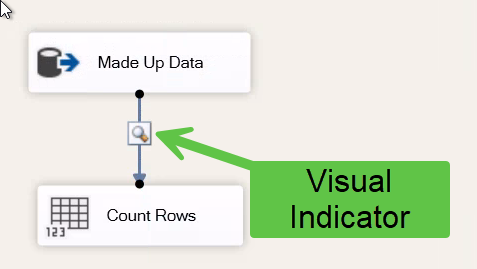
- A small grid/magnifying-glass icon appears on the path, marking where execution will pause, just like a breakpoint glyph in the editor margin.
- Optional: double-click the arrow, go to the Data Viewer tab, and pick which columns to display.
- Run the package (F5 / Execute Package). When execution reaches that path it pauses and pops up a grid of the actual rows.
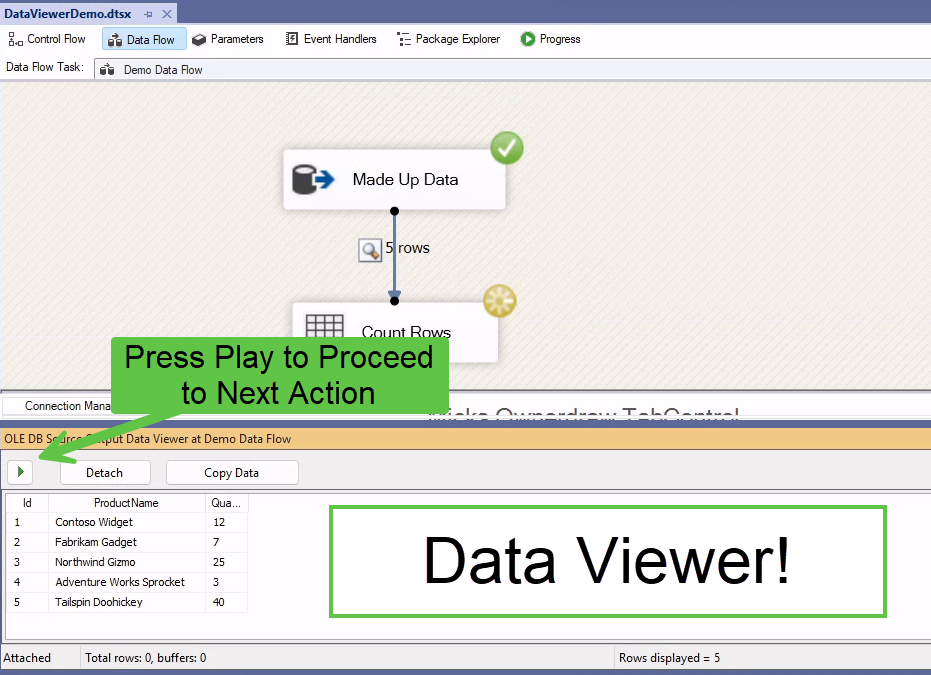
- Read the values you care about, then click the green Play / Detach button to let execution continue. It will still hit any downstream error, but by then you already have what you need.
- When you are done, right-click the arrow and choose Disable Data Viewer so it does not pause every future run.
In the grid above, the rows and their column values are sitting paused on the path, which is all you need to answer the only question that matters: is the value what I think it is?
That single look flips the whole investigation:
- If the value is exactly what you expected, the problem is not your data or your expression. It is the downstream component’s configuration or its idea of what that value should be. Go look there.
- If the value is wrong, you just caught it at the source, before it wasted any more of your time downstream.
Either way you have replaced a guess with a fact in about five seconds. In my case the value was exactly right, which told me the component I had been “fixing” was never the problem, and pointed me straight at the real culprit.
Tips for using the Data Viewer well
- Put it on the right path. Attach it to the arrow going into the component you suspect, so you see the values exactly as that component receives them.
- Trim the columns. Double-click the path, open the Data Viewer tab, and display only the columns you care about. A narrow grid is much easier to read than 40 columns.
- It is a breakpoint, so treat it like one. Detach or disable it when you are done. A forgotten Data Viewer pauses every future run and will make you think the package is hung.
- It does not change your data. The viewer shows a copy of the buffer as it flows; it does not alter the pipeline. It does hold execution, so use it for interactive debugging, not on an unattended run.
- Copy Data is your friend. The grid has a Copy Data button; paste the rows into a spreadsheet or query window when you want to compare values more carefully.
Quick checklist
- When a data-flow value is suspect, enable a Data Viewer on the path into the failing component and read the real runtime value before changing anything.
- If the value matches what you expected, the component configuration is the problem, not your data.
- If the value is wrong, fix it upstream at the source or transform that produced it.
- Disable the Data Viewer when you are done so it does not pause every run.
Wrap-up
The Data Viewer is the single most useful SSIS debugging habit I keep forgetting I have. Anytime a value in a data flow does not match what a component expects, do not reread the config and hope. Drop a breakpoint on the path, run it, and look at the rows. Five seconds of watching beats an hour of guessing.