I was moving data across environments with the KingswaySoft SSIS Integration Toolkit: stage each entity’s records to local NDJSON files, then push those files up to an Azure Blob container with the Azure Blob Storage Destination. The extract ran clean and the files were on disk, but the upload kept failing with an error that had me editing the wrong thing for far too long:
Error: 0xC002F304 at Upload to Blob, Azure Blob Storage Destination: An error occurred with the following error message: “KingswaySoft.IntegrationToolkit.AzureBlobStorage.AzureBlobStorageServiceException: Cannot upload file directly to root ’\’. FullPath must be in format of ‘folder\file’.”
Everything looked correct, so I “fixed” my expression a few times and got the exact same error each time. This post is the explanation I wish I had found: what the error really means, why the setup is misleading, and the one-line fix.
Bottom line
- Build the KingswaySoft Azure Blob Destination
FullPathascontainer/folder/filewith forward slashes. - Include the container as the first path segment even though the Azure Blob Storage Connection Manager already has a Container field.
- In my package, the working Premium Derived Column expression was
@[$Package::BlobContainer] + "/" + @[$Package::EntityLogicalName] + "/" + [__PremiumFilePack.Name].
The data flow
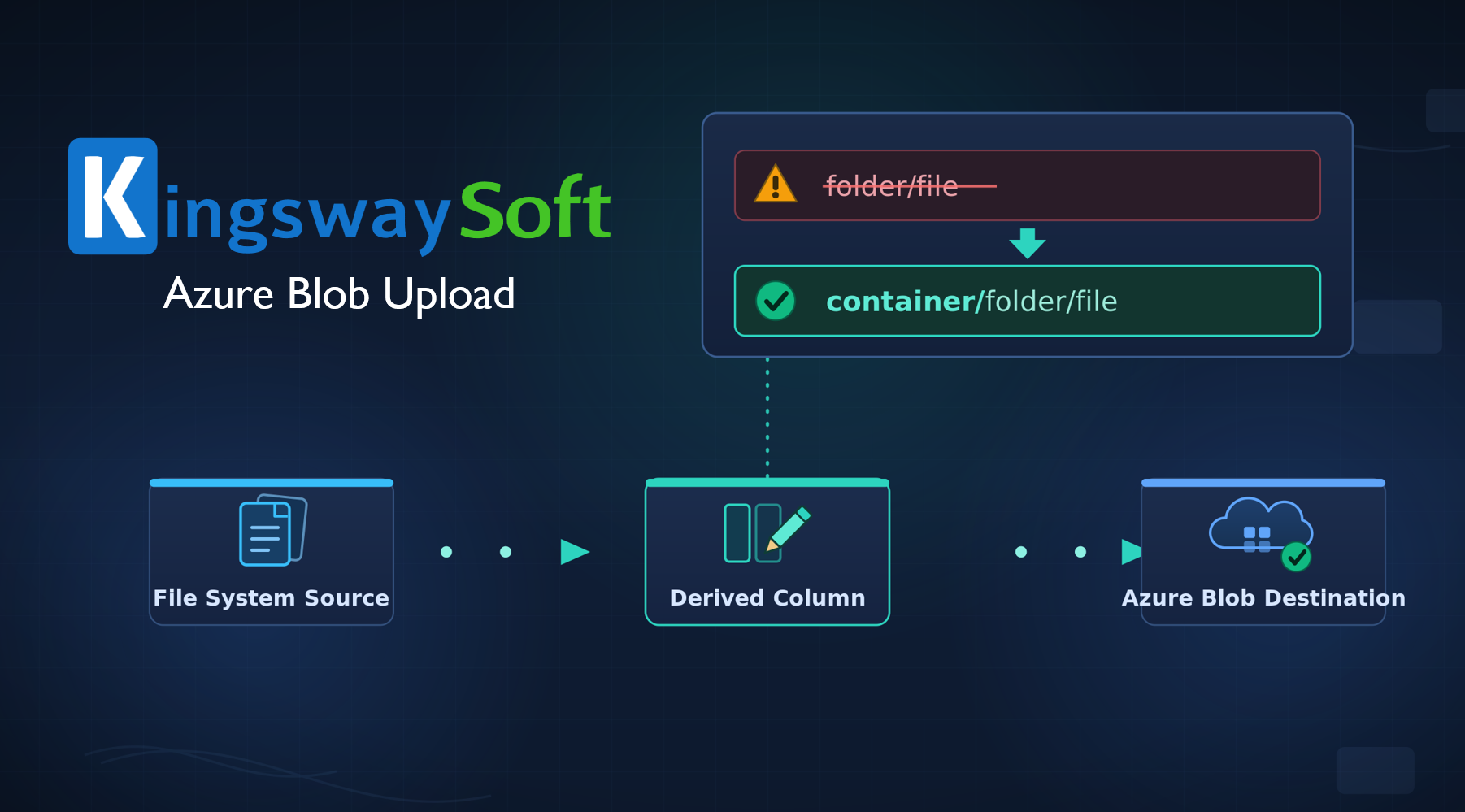
At a high level, the package is just a three-step pipeline: read staged files from disk, replace the local path with the blob path KingswaySoft expects, then upload the bytes to Azure Blob Storage.

Three KingswaySoft components, a very common pattern for uploading files to blob:
- Premium File System Source lists the staged files on disk and, usefully, emits the file bytes directly as
FileContent(a DT_IMAGE column) along withFullPath,Name, andContent-Type. No Import Column transform needed. - Premium Derived Column builds the blob path for each file.
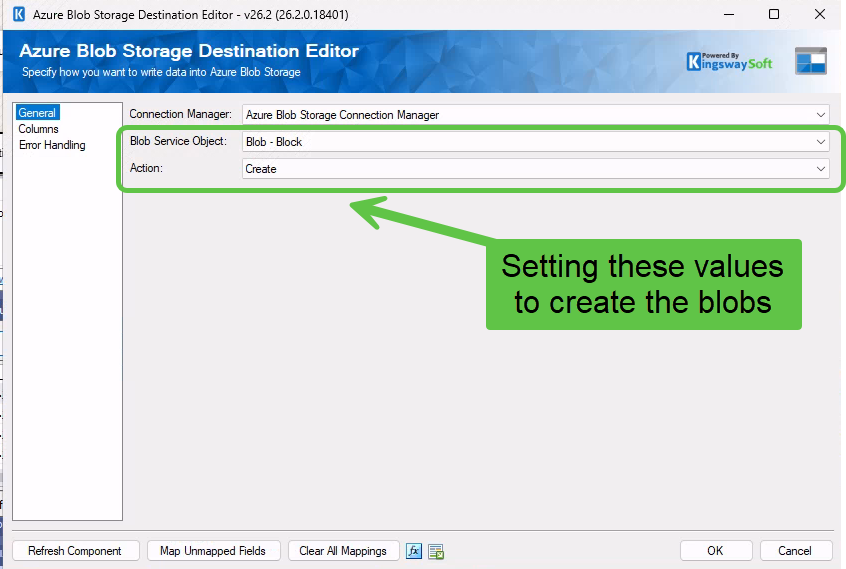
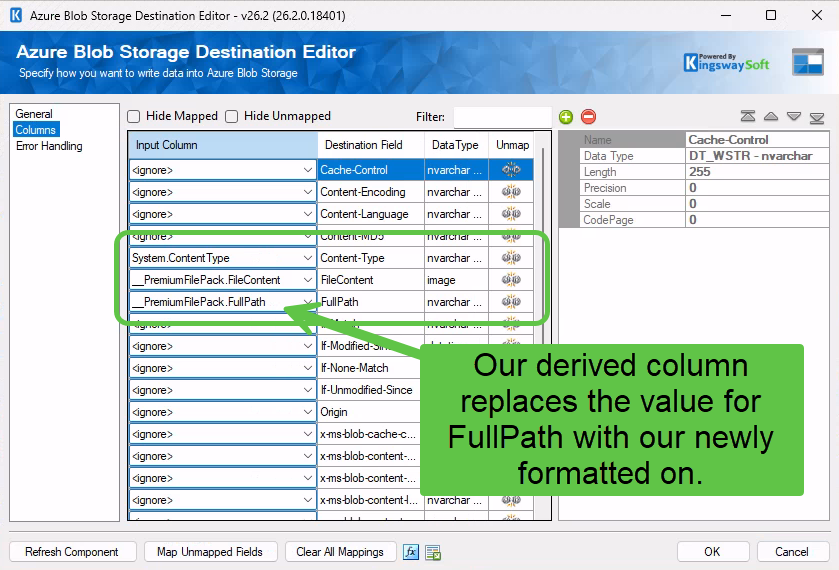
- Azure Blob Storage Destination (Blob - Block / Create) writes each row as a blob, with its FullPath field mapped from the derived column, FileContent from the source bytes, and Content-Type from the source.
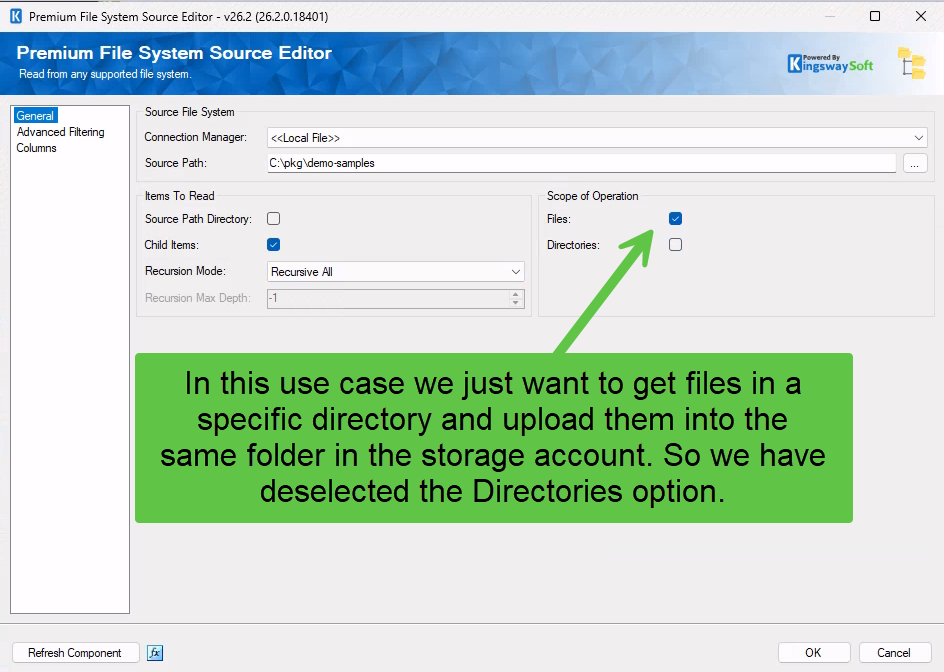
Here is how the Premium File System Source is set up. It points at a local folder and reads files only, not directories:
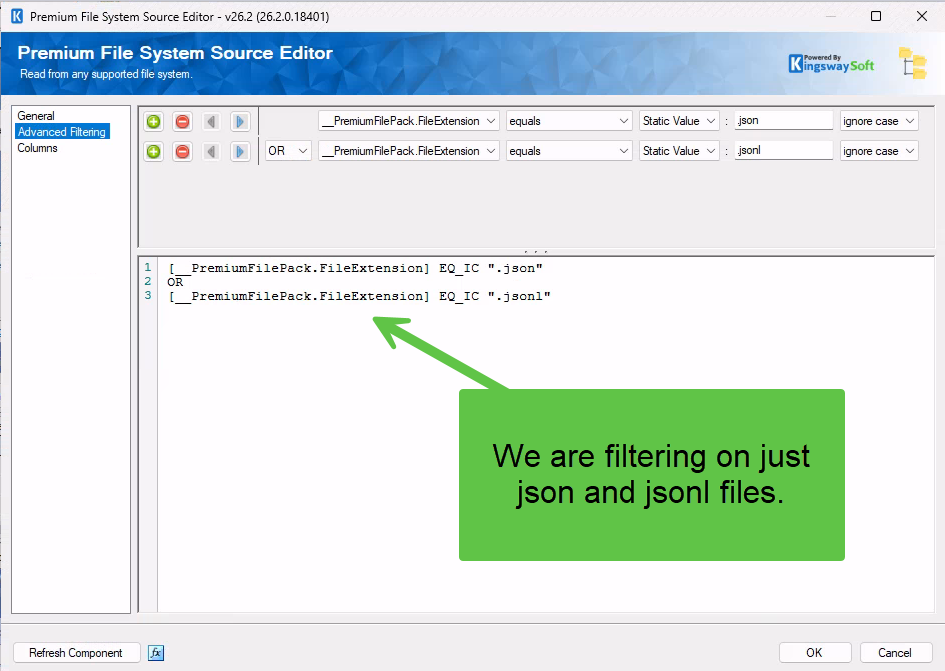
I filter to just the file types I care about so nothing else in the folder tags along:
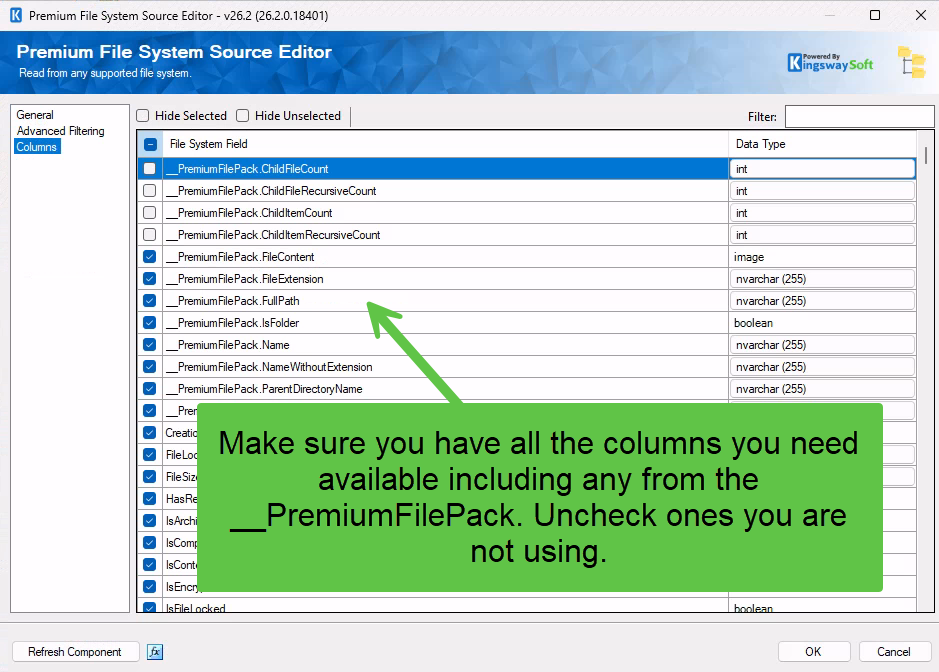
And on the Columns page, the key detail is that FileContent (the raw bytes) is available to select, which is why no Import Column transform is needed. Uncheck the ones you are not using:
On paper the mapping and the expression were correct, which is exactly why I kept editing them instead of looking at the data.
How I confirmed it was not my expression
Rather than keep guessing, I dropped a Data Viewer on the path feeding the destination and watched the actual value. (I wrote up that technique separately in Debugging SSIS Data Flows with the Data Viewer.) The value flowing into FullPath was exactly what I intended, something like:
sample-records/Sample1.jsonThat was the turning point. The value was a perfectly good folder/file, so the problem was not my expression at all. It was the destination’s idea of what FullPath should contain.
The actual rule: FullPath is container/folder/file
Here is what the error does a poor job of explaining:
- The KingswaySoft Azure Blob Storage Destination treats the first path segment of
FullPathas the container name, not as the first folder inside a container. - Use forward slashes (
/). The error text saysfolder\filewith a backslash, but the blob-native separator is/, and that is what actually works. - A blob cannot be written at the container root, so a two-segment value like
sample-records/Sample1.jsonis read as containersample-recordswith the file sitting at its root. That is exactly the “cannot upload file directly to root” condition.
So the value needed the container up front, as a third segment:
your-container/sample-records/Sample1.jsoncontainer = your-container, folder = sample-records, file = Sample1.json.
Why I did not know to include the container
This is the part that genuinely fooled me. When you configure the Azure Blob Storage Connection Manager, it asks you for a Container name. So I naturally assumed the destination’s FullPath was relative to that container, and that I only needed to supply folder/file.
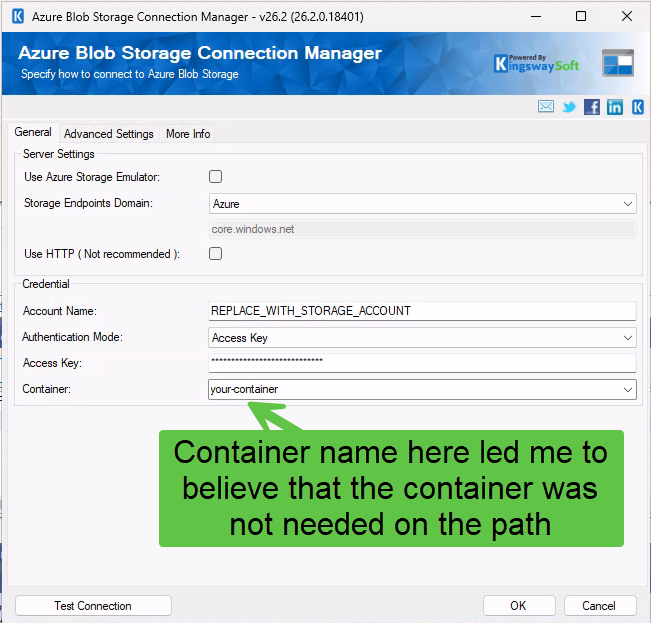
It is not relative. The connection manager’s container is used for browse, list, and source operations, but the destination write path ignores it. You still have to repeat the container as the first segment of FullPath. That mismatch between “the connection manager already knows my container” and “the destination wants it again in the path” is the whole trap.
The fix
I parameterized the container and the folder so the expression is reusable across entities. In the Premium Derived Column, the expression is simply container, folder, and file name joined with forward slashes:
@[$Package::BlobContainer] + "/" + @[$Package::EntityLogicalName] + "/" + [__PremiumFilePack.Name]The important detail is that the derived column is set to replace the existing __PremiumFilePack.FullPath column rather than add a new one, so it flows straight into the destination’s FullPath field:
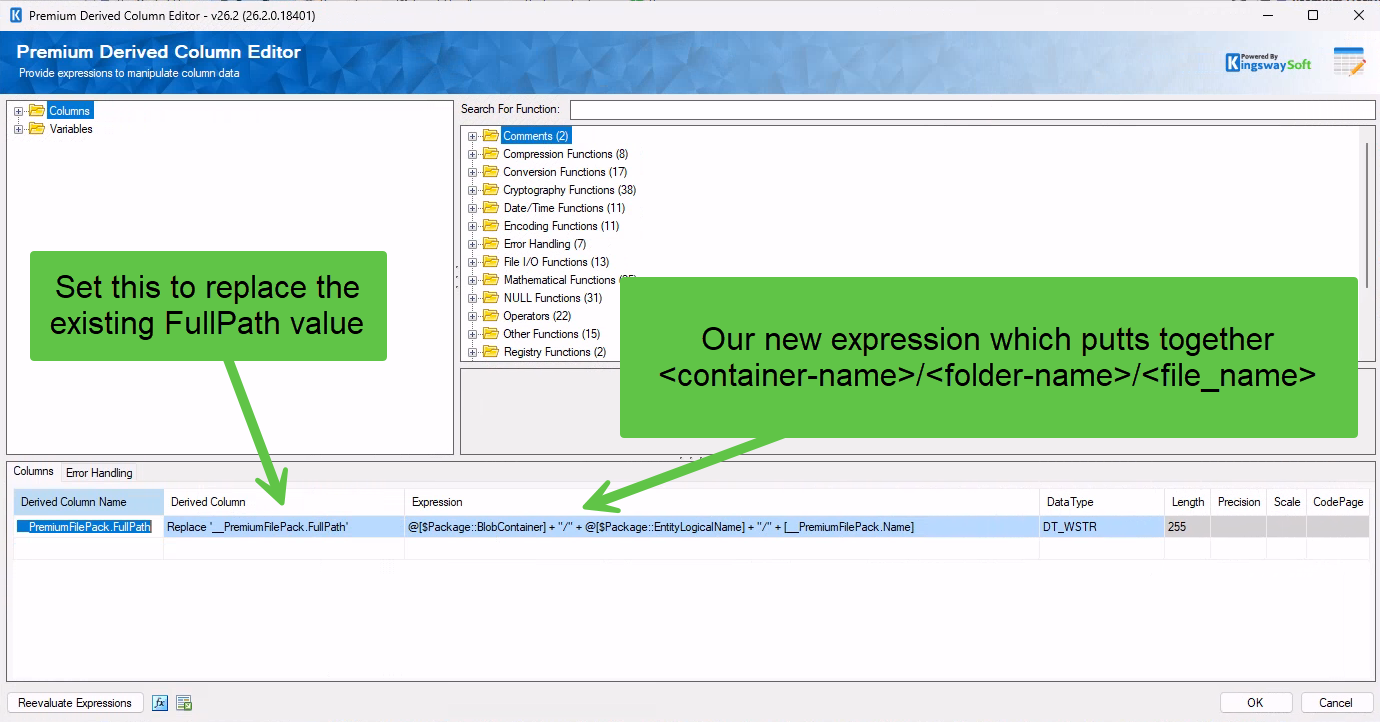
With BlobContainer = your-container and EntityLogicalName = sample-records, that produces your-container/sample-records/Sample1.json, and the upload went green.
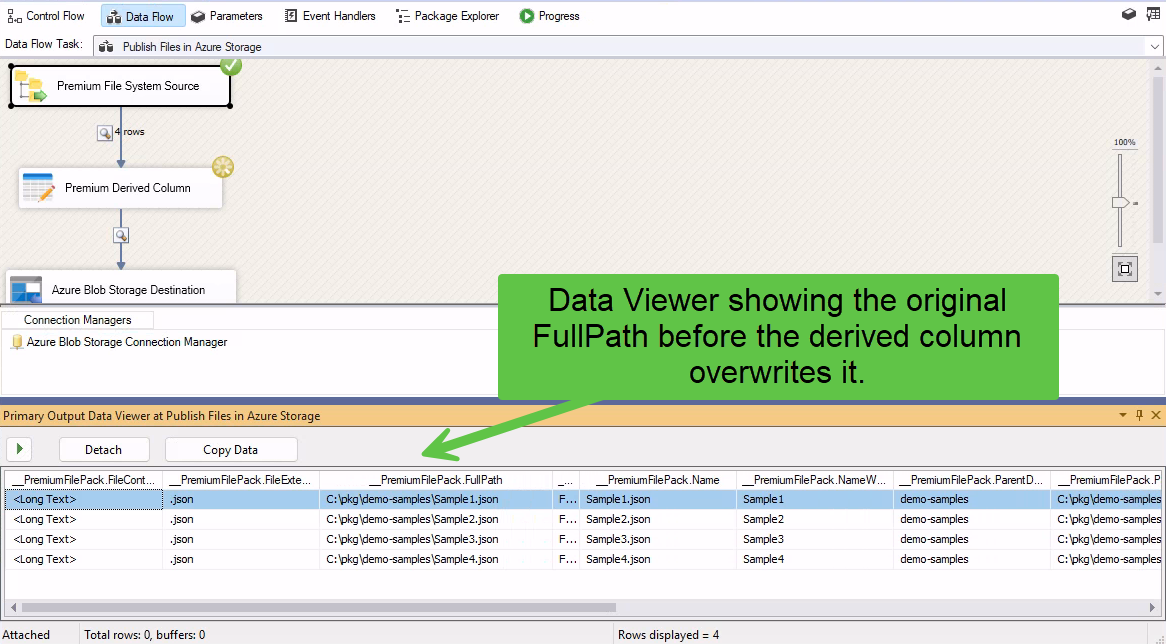
You can watch the transformation happen with a Data Viewer. Before the derived column runs, FullPath is the local path the source read:
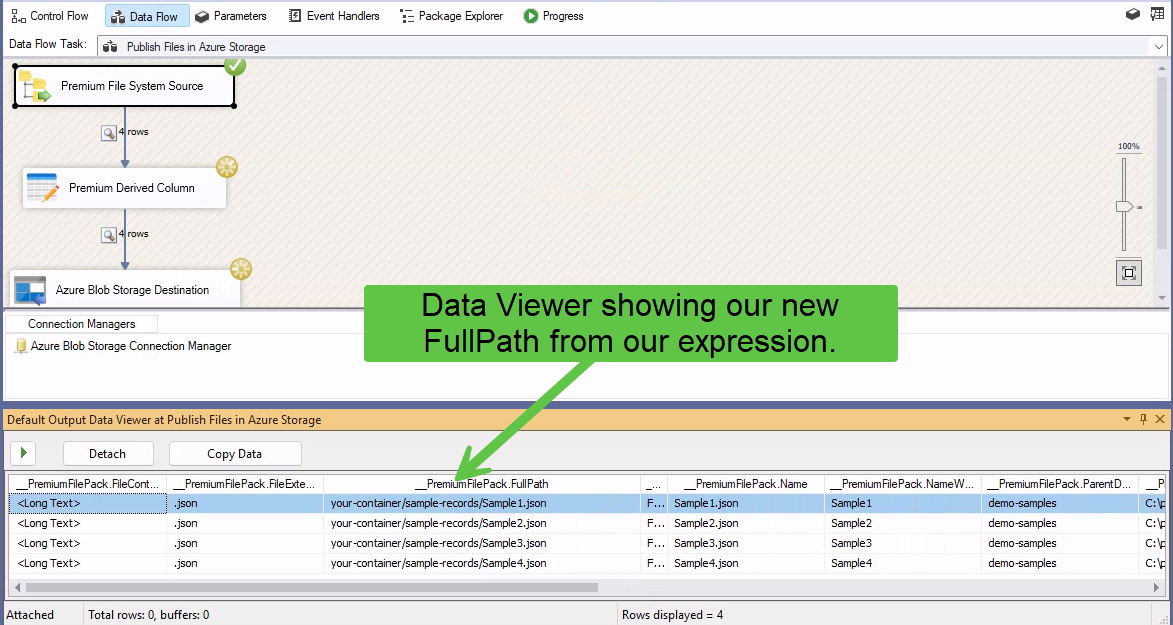
After the derived column, the same FullPath column holds the blob key, container first:
The destination itself is simple once the path is right. Set the Blob Service Object to Blob - Block and the Action to Create:
Then map just three fields, FullPath, FileContent, and Content-Type, and leave the rest as ignore:
 A couple of things worth noting from the same session:
- Package parameters referenced as
@[$Package::...]do resolve inside a Premium Derived Column. I briefly assumed they did not; they do. - The Premium Derived Column escapes strings C# style, but once you switch to forward slashes you do not need any backslashes at all.
Quick troubleshooting checklist
- If you see
Cannot upload file directly to root '\', yourFullPathis missing the container segment. - Build
FullPathascontainer/folder/filewith forward slashes, container first. - Do this even though the connection manager already has a Container set. The destination write path does not use it.
- Not sure what value is actually flowing? Put a Data Viewer on the path into the destination and read it before changing anything.
- You do not need an Import Column transform. The Premium File System Source already emits
FileContent(DT_IMAGE),FullPath,Name, andContent-Type.
Wrap-up
The fix was one expression change, but the lesson was two-fold: read the error literally (FullPath must be in format of 'folder\file' really does mean it wants a folder segment, and the container counts as the first one), and do not trust that the connection manager’s container carries into the write path. When the value looks right but the component still complains, watch the row with a Data Viewer and then go read the component’s own idea of the format.