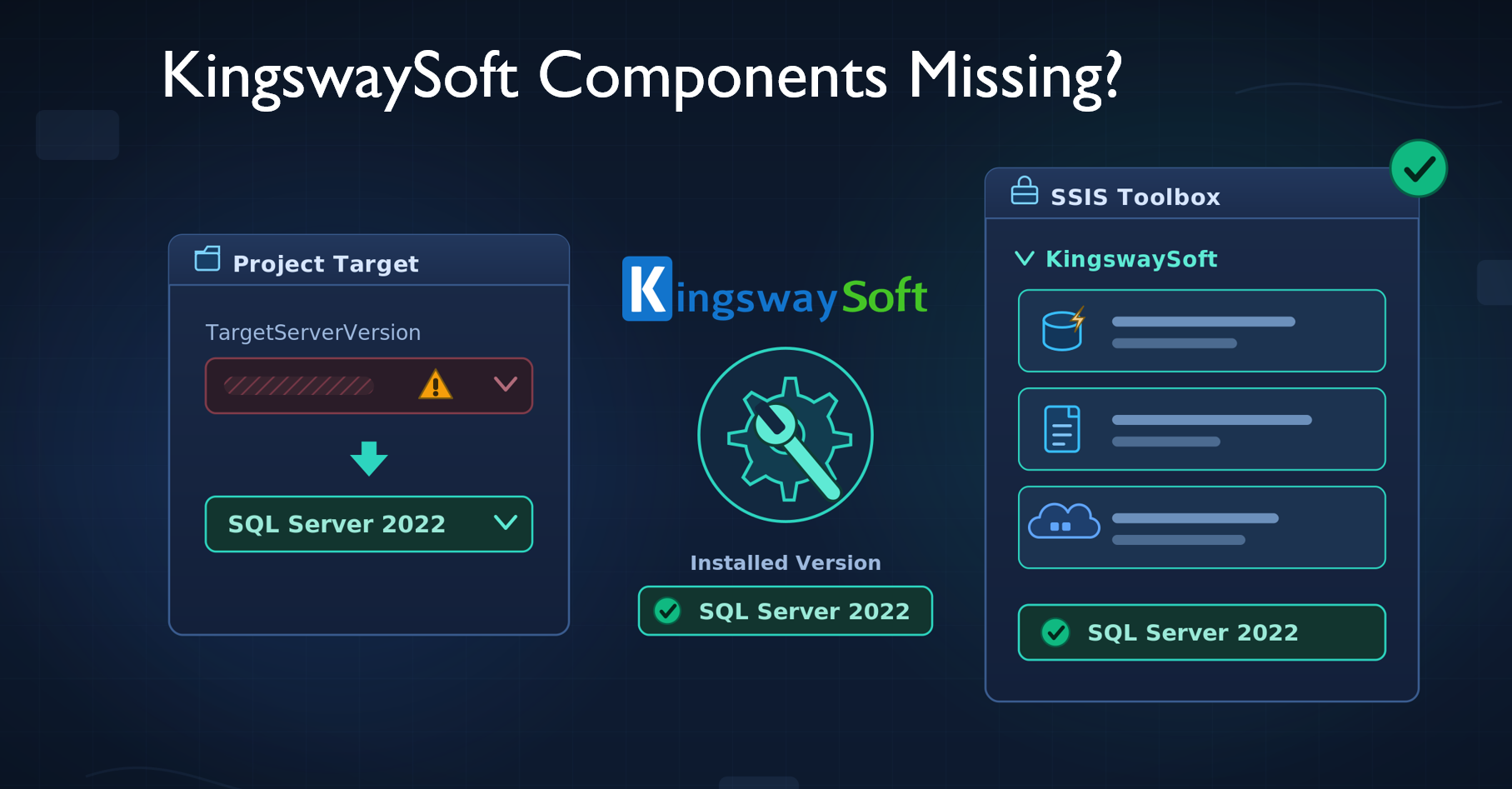
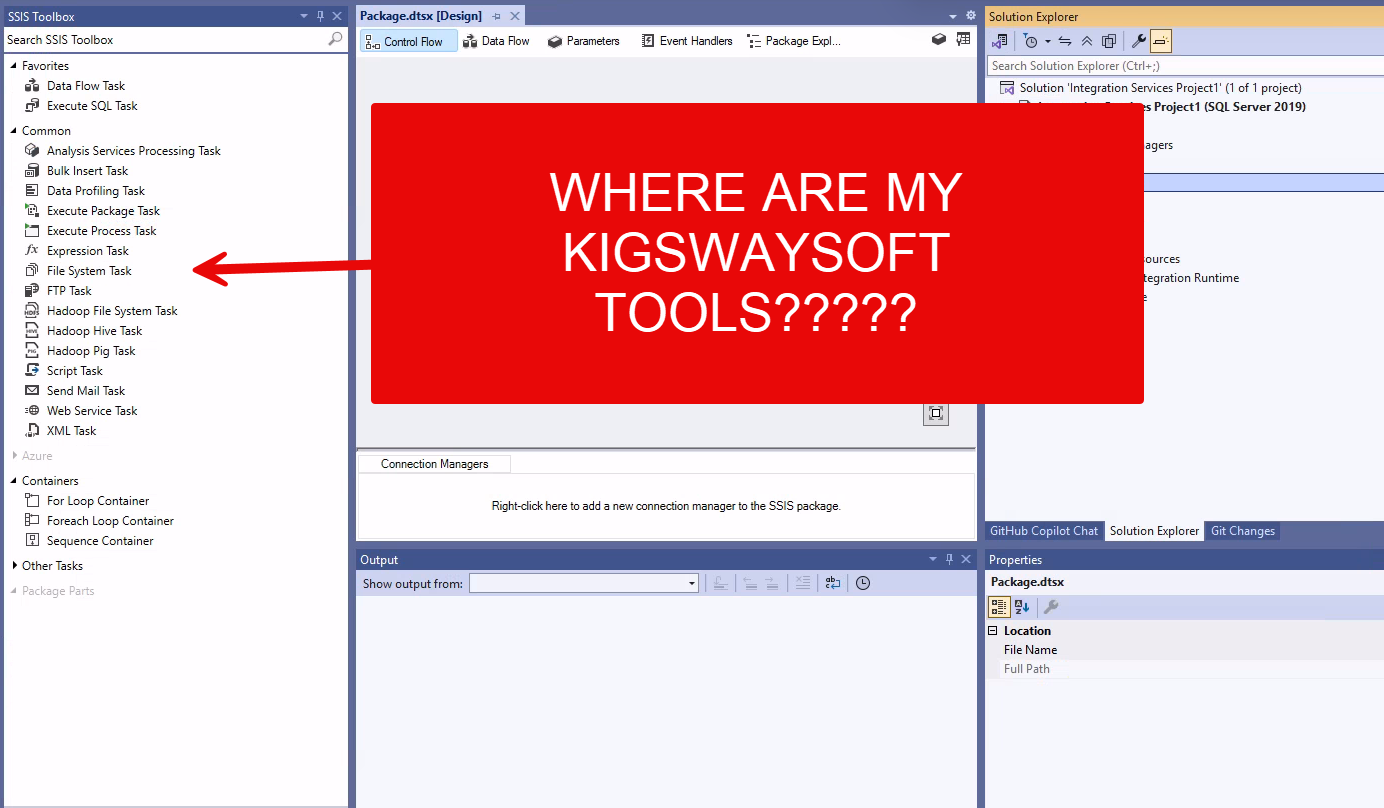
You open a Data Flow Task, go looking for the KingswaySoft Dataverse Source, Premium File System Source, or Azure Blob Storage Destination, and they are simply not in the SSIS Toolbox. The toolkit is installed, other projects use it, but this project acts like it was never there.
Nine times out of ten this is not a broken install. It is a version mismatch: the KingswaySoft components are installed for one SQL Server version, and your SSIS project is targeting a different one. SSIS resolves third-party data flow components by the project’s target server version, so if they do not line up, the components never appear in the toolbox for that project.
Here is how to check both sides and line them up.
Step 1: find out which version the components are installed for
Re-run the SSIS Integration Toolkit Installer and choose Modify. On the “Modify SQL Server Versions” page you can see exactly which SQL Server versions have components installed. Anything marked Installed is a version your projects can target; anything not detected is not.
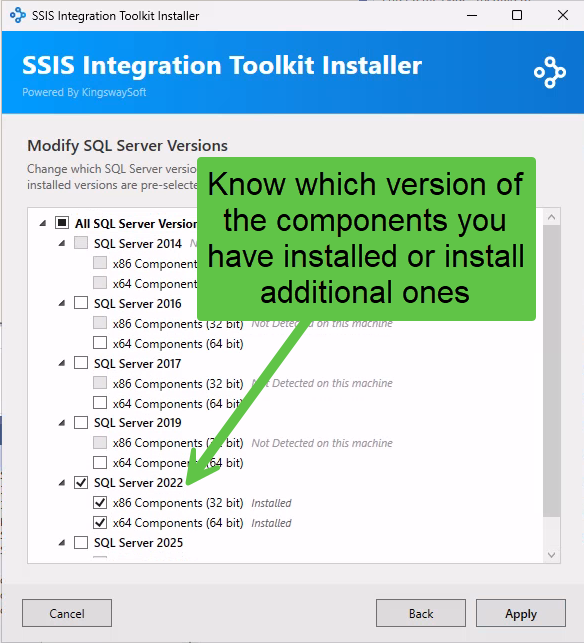
In this example the components are installed for SQL Server 2022 (both x86 and x64), but not for 2025. So any project that targets 2025 will not see the KingswaySoft components. You can either target 2022, or check the 2025 boxes here and click Apply to add them.
Step 2: match the project’s target server version
Now make the project agree with what is installed. In Solution Explorer, right-click the project and choose Properties, then go to Configuration Properties and set TargetServerVersion (under Deployment Target Version) to the version the components are installed for.
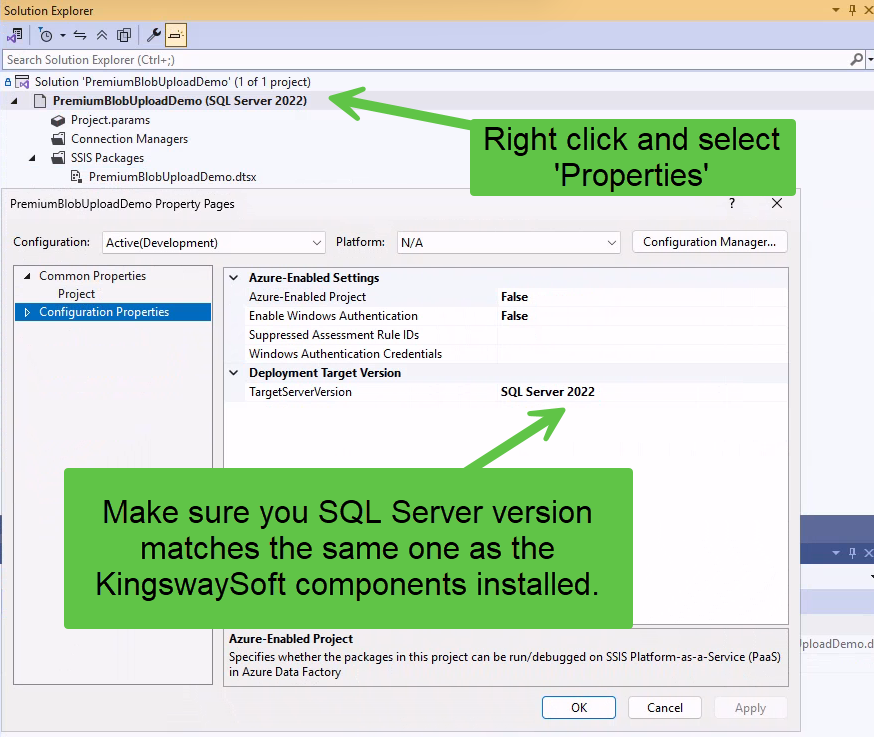
The Solution Explorer even shows the current target next to the project name, for example PremiumBlobUploadDemo (SQL Server 2022). Make sure that matches the installer. After you change it, close and reopen the package (or restart Visual Studio) so the toolbox reloads.
This is the single most common reason a hand-created or copied
.dtprojshows no KingswaySoft components: a new project defaults to the latest target version, which may be newer than the version the toolkit was installed for.
Step 3: if they are still missing, re-add them to the toolbox
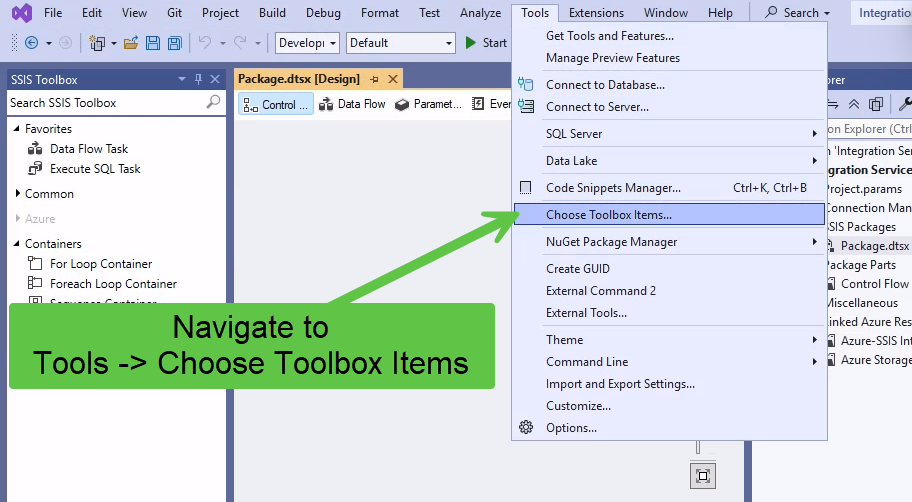
If the versions match and the components are still not showing, the Visual Studio toolbox cache can get stale. Add them back manually. Go to Tools -> Choose Toolbox Items.
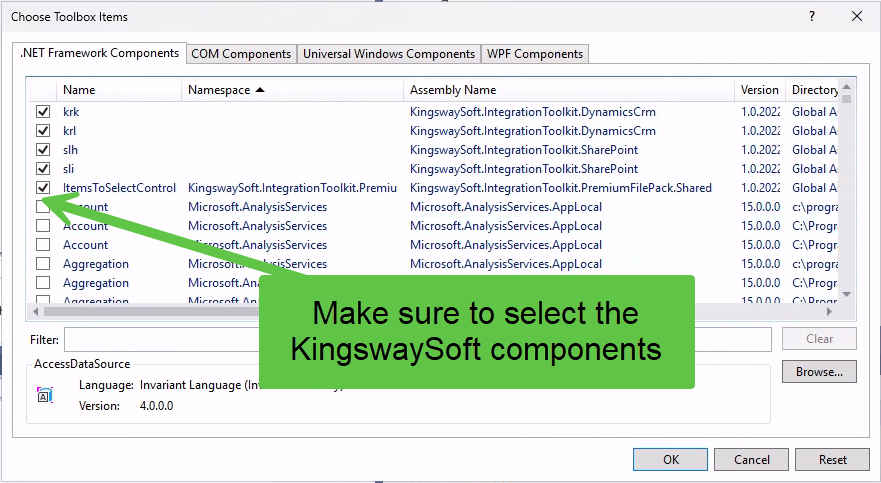
On the .NET Framework Components tab, sort by Namespace and check the KingswaySoft.IntegrationToolkit.* entries (Dynamics CRM, SharePoint, Premium File Pack, and so on), then click OK.
Finally, right-click anywhere in the SSIS Toolbox and choose Refresh Toolbox. This forces Visual Studio to re-scan for available components and is often what actually makes them appear after the versions match or you have re-added them above.
A few other things to check
- Restart Visual Studio. The toolbox is populated on load; a stale session is a common culprit after installs or target changes.
- Match the bitness/edition. Make sure the toolkit is installed for the SQL Server version and that your Visual Studio SSIS extension (SSDT / Integration Services Projects) is current.
- Reinstall for the missing version. If a version shows “Not Detected” in the installer and you need it, run Modify and add it rather than reinstalling from scratch.
- Confirm the license/edition if only some components are missing; the Productivity Pack and Premium File Pack are separate from the core Integration Toolkit.
Wrap-up
When KingswaySoft components vanish from the SSIS Toolbox, resist the urge to reinstall first. Check the installed component version against the project’s target server version and make them match. That one setting fixes it almost every time. Choosing toolbox items and restarting Visual Studio cover the rest.