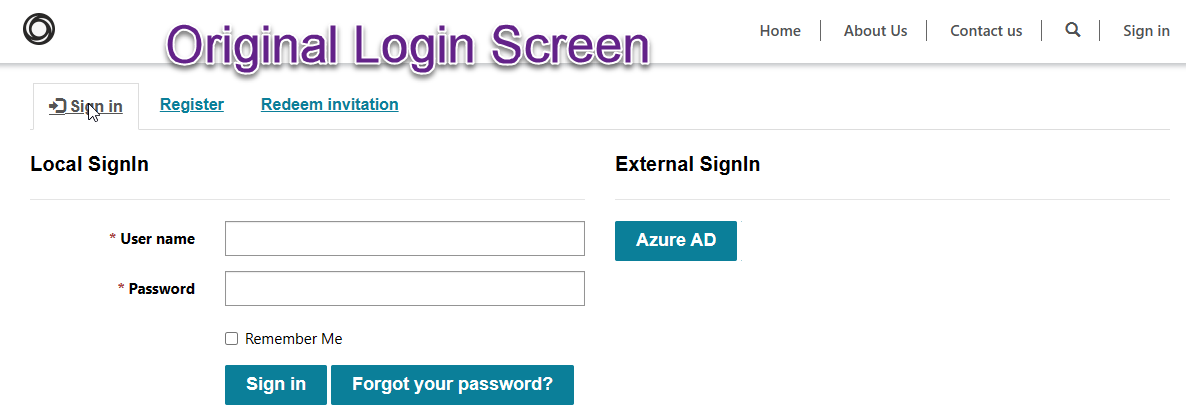
It is recommended that you no longer use Local Login authentication for Power Apps Portal but instead utilize Azure Active Directory B2C to provide this type of authentication. See Migrate identity providers to Azure AD B2C
Configuring the B2C providers is fairly straightforward utilizing the new preview interface Configure the Azure Active Directory B2C provider. Make sure you navigate to the preview version of the Maker portal for now to access this, https://make.preview.powerapps.com/.
For this article my goals were the following.
- Set the existing Azure AD and Local Login configuration as deprecated authentication mechanisms within the portal to migrate the users to B2C.
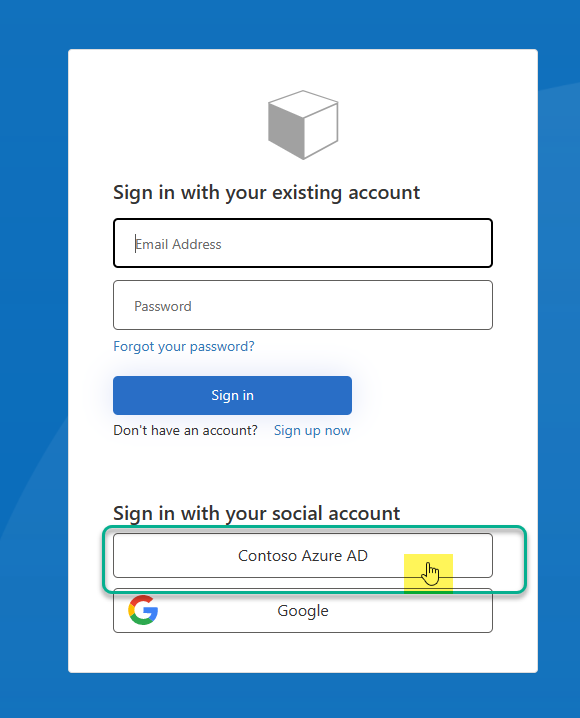
- Allow user to authenticate to B2C using Azure AD, Google or create local B2C account.
Deprecate Old Providers
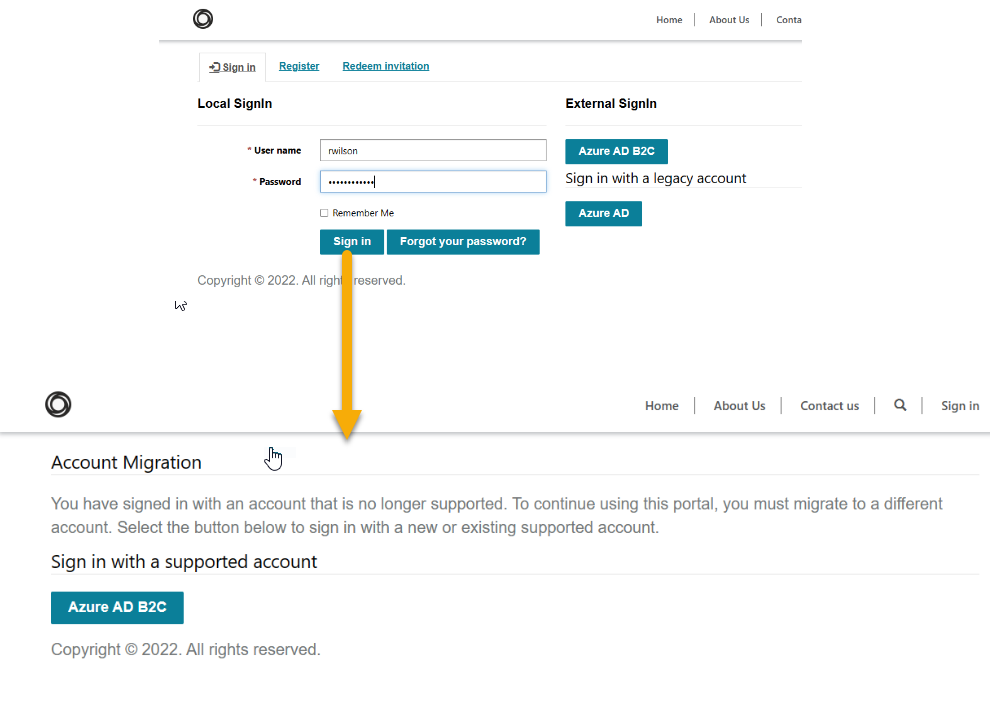
Once I had run through the instructions for configuring the Azure B2C authentication I then had to mark the Local Login and Azure AD authentication methods as deprecated. This ensures that when existing users log into the Portal using those methods, they will then be asked to migrate their account to B2C.
Deprecation of the old providers can be done through the Portal Management model app within the Site Settings.
Set Local Login Authentication as Deprecated
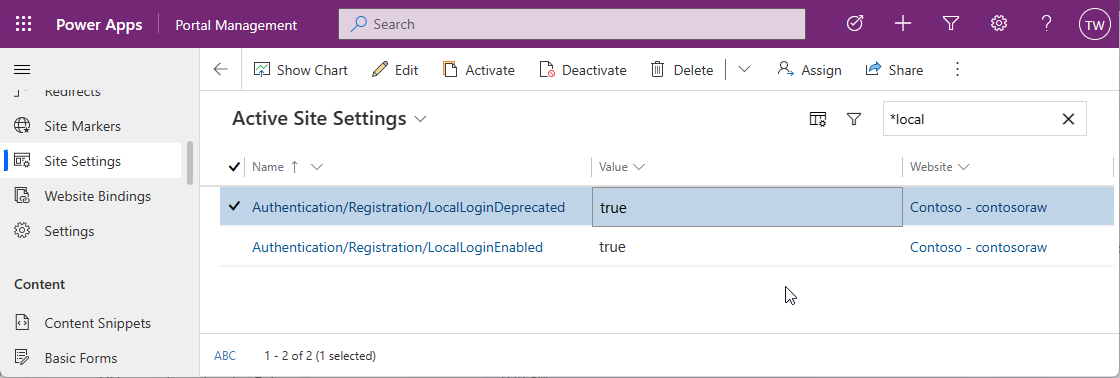
The site setting for deprecated the local authentication was already in my site settings so i set the value to true.
| Name | Value |
|---|---|
| Authentication/Registration/LocalLoginDeprecated | true |
Set Azure AD Authentication as Deprecated
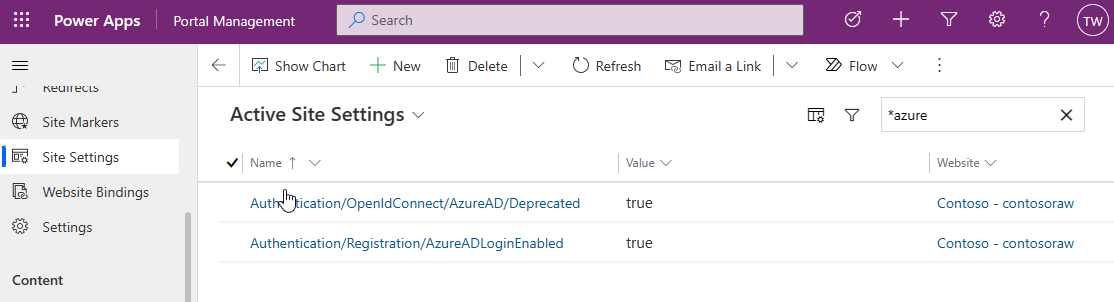
In order to deprecate other providers you need to create the site settings for them and set the value to true. The format for these values is.
Authentication/[protocol]/[provider]/Deprecated
| Name | Value |
|---|---|
| Authentication/OpenIdConnect/AzureAD/Deprecated | true |
Google Identity Provider
Setting up the Google identity provider was easy and the instructions provided worked without any issues. See Set up sign-up and sign-in with a Google account using Azure Active Directory B2C
Azure AD Provider
The instructions for Adding an Azure Active Directory provider to Azure Active Directory B2C but there were a few items missing to get it working correctly with Power Apps Portal.
If you don’t complete the additional steps you will end up with users in your B2C who do not have an email address assigned to them. Additionally, the persons email, first name and last name will not be provided to the portal which will result in the following error screen when new users attempt to register.
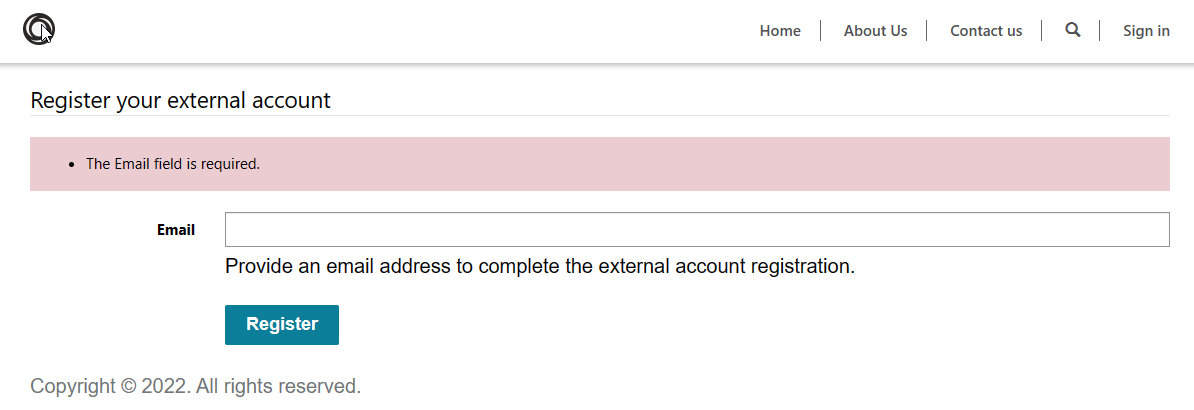
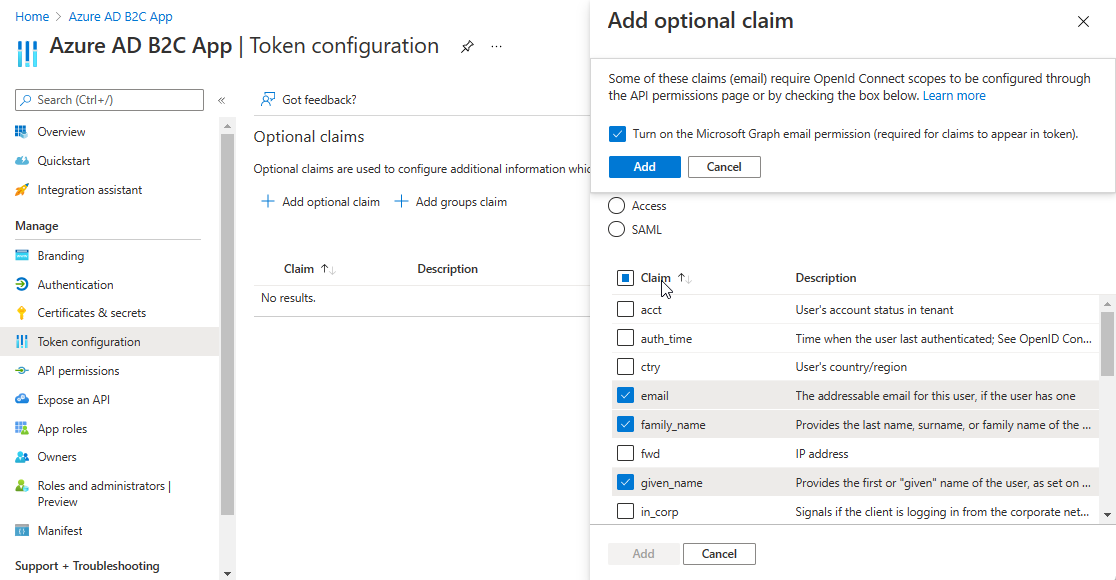
The first thing we need to do after creating the Azure AD provider app registration is to update the token configuration. This will ensure that email, first name, and last name are included correctly in the token.
- Navigate to the directory in the Azure Portal where your Azure AD lives.
- Create the app registration for the Azure AD Identity provider using the instructions found [here]((https://docs.microsoft.com/en-us/azure/active-directory-b2c/identity-provider-azure-ad-single-tenant?pivots=b2c-user-flow)
- Under Manage click Token configuration
- Click Add optional claim button
- Select the Token type of ID
- Click the check boxes next to eamil, family_name, given_name
- Click the Add button
- You will receive a message that the optional claims will require additional API permissions. Click the Turn on the Microsoft Graph email permission (required for claims to appear in token) checkbox and click the Add button.
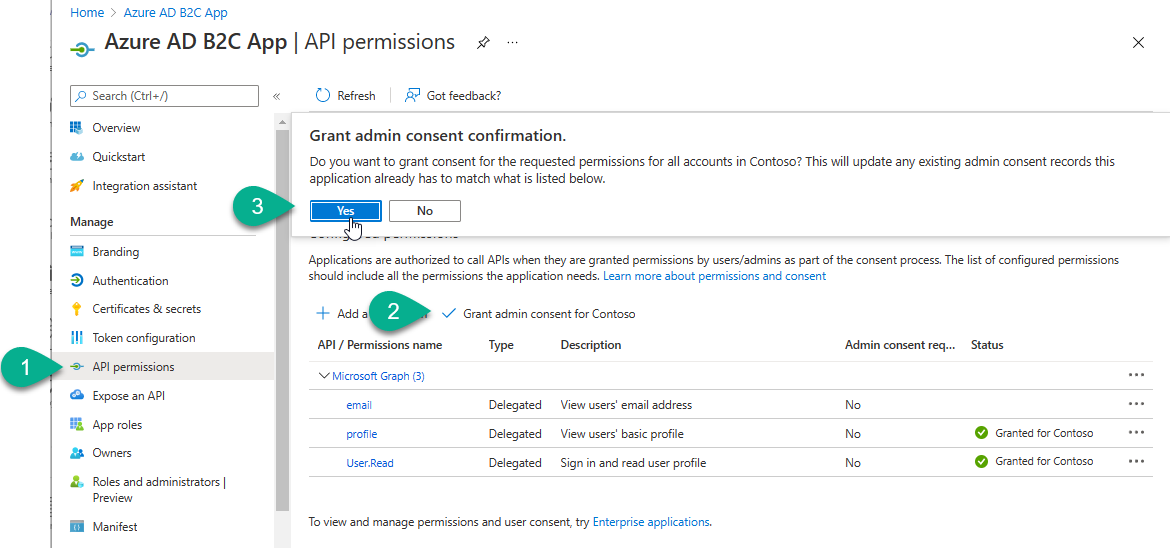
Next we must ensure that the API permissions that were added have admin consent
- Under Manage click the API permissions
- Click Grant admin consent for button
- Click Yes when asked to grand admin consent
I also found issues where the B2C configuration redirect URI utilize the tenant id instead of the domain name so I also added an extra Uri for that address.
- Under manage click Authentication
- You should already have one Redirect URI listed (eg. https://domainb2c.b2clogin.com/domainb2c.onmicrosoft.com/oauth2/authresp) which you added when going through the instructions for creation the app registration. Click the Add URI button to add another.
- Add a second uri that utilizes the Tenant ID of the B2C directory instead of domainb2c.onmicrosoft.com (eg. https://domainb2c.b2clogin.com/a89ff66d-26c2-4407-9096-b216ce8b6a10/oauth2/authresp)
Finally we need to update the Sign In/Sign Up user flow created during the B2C Portal setup.
- Navigate to the director in the Azure Portal where you Azure B2C lives.
- Within Azure services click on Azure AD B2C
- Under the policies area click User flows
- You should see 2 users flows. Select the one contaiing the text signupsignin
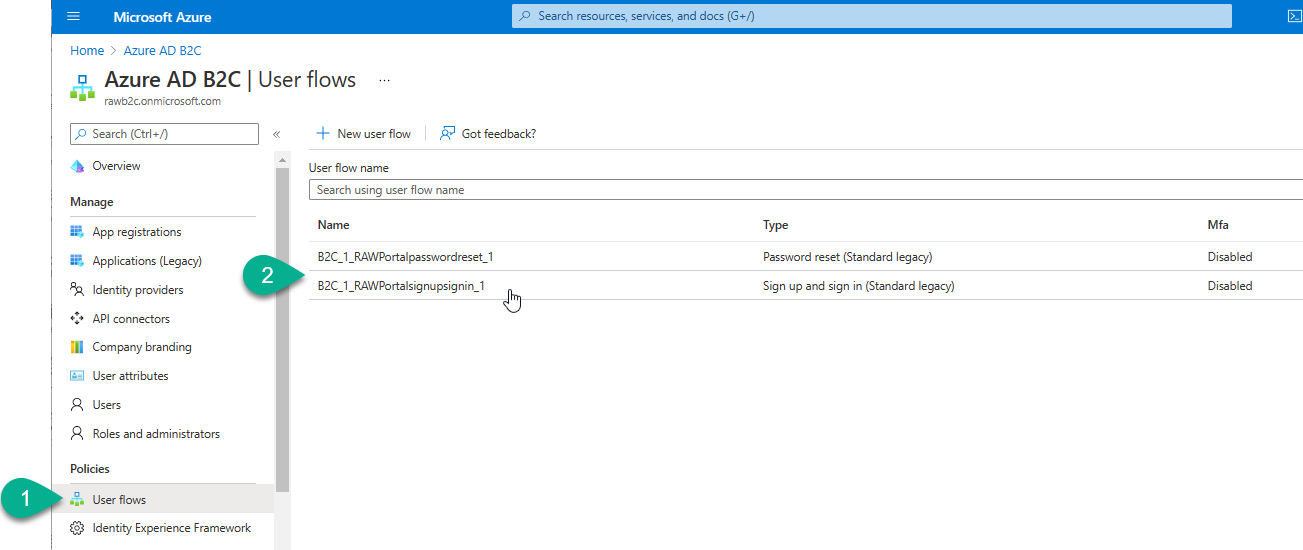
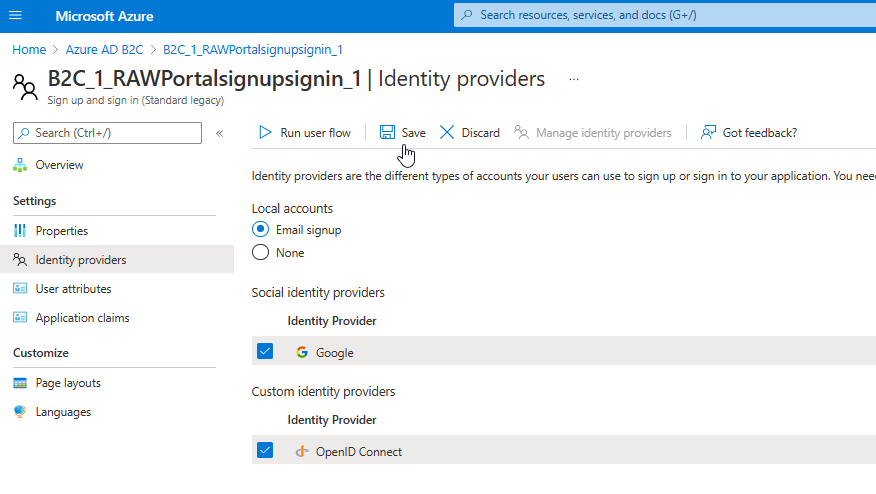
- Click on Identity providers and ensure that you have selected the new Identity providers you have created. After selecting them click the Save button
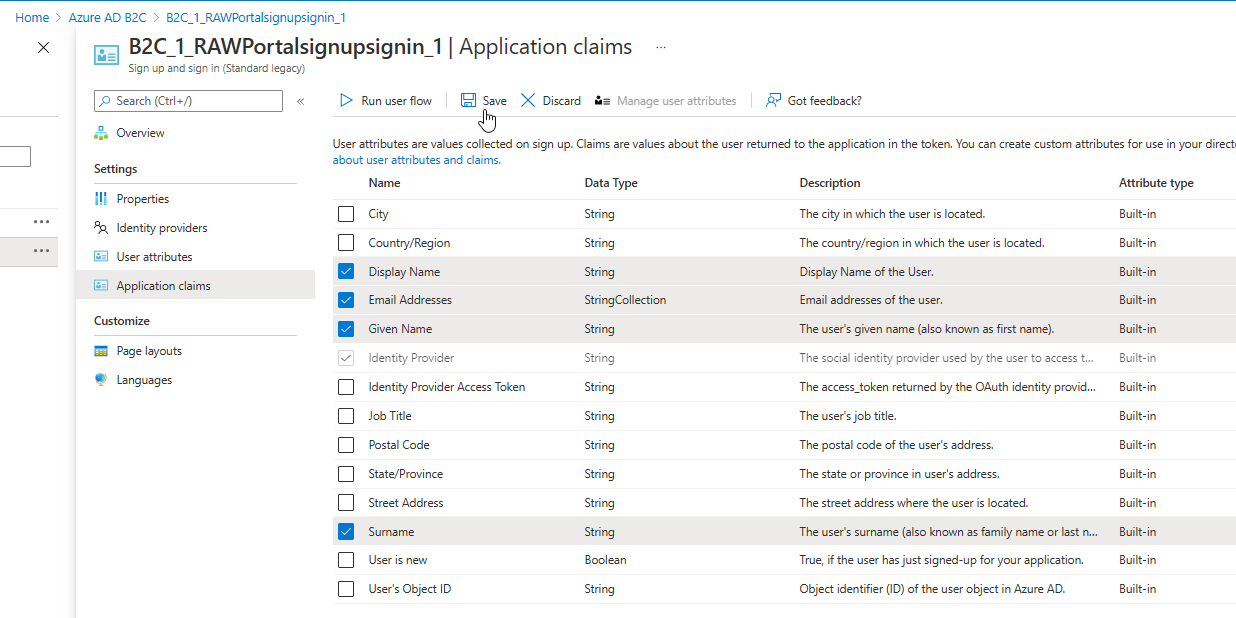
- Click on Application claims and select the Display Name, Email Addresses, Given Name, and Surname attributes then click the Save button.
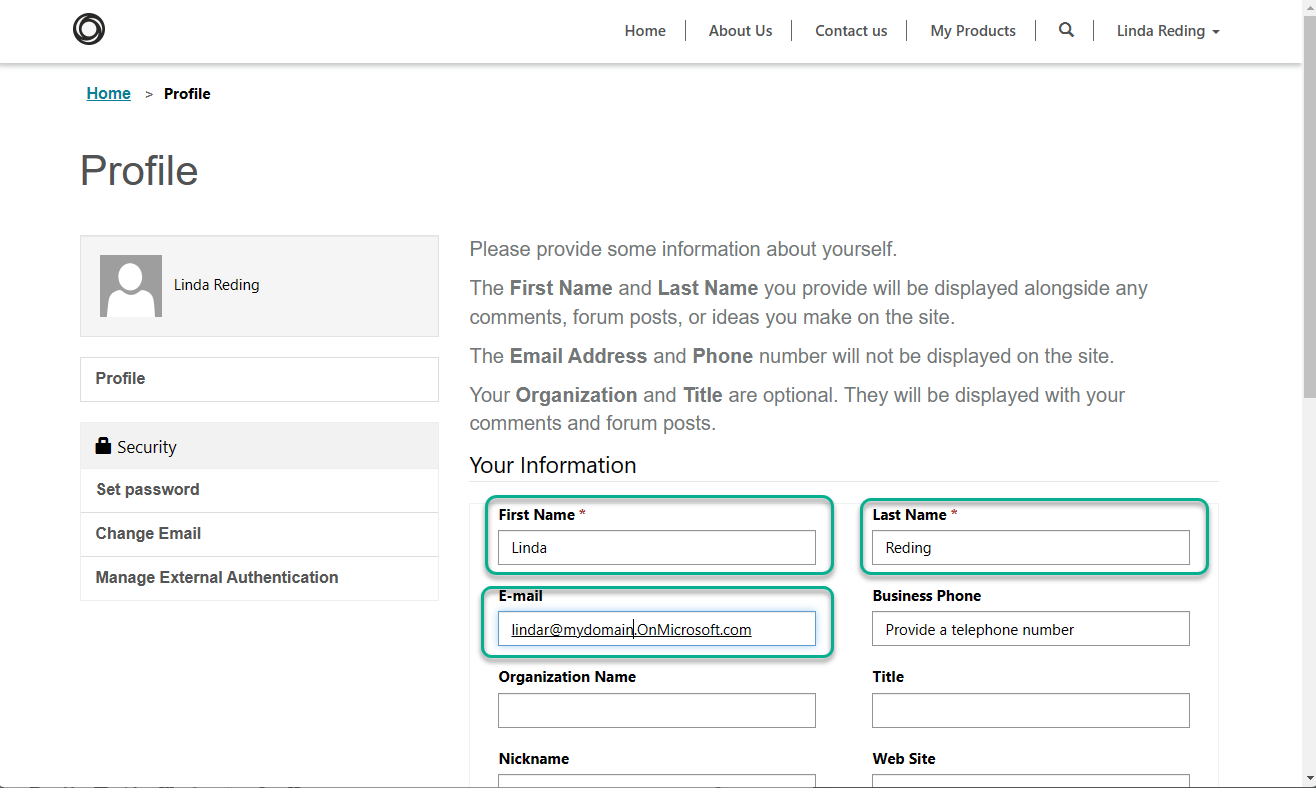
Now when a user attempts to register using your AD provider the email, first name and last name will all be passed to the Portal and show up on the profile page after the user has logged in.
Invitation Info
One thing I discovered through all this was that the Invitation system still works correctly after moving to B2C. I was able to create Invitations for contacts and redeem those invitation with the B2C provider in the exact same manner I did with the other providers.