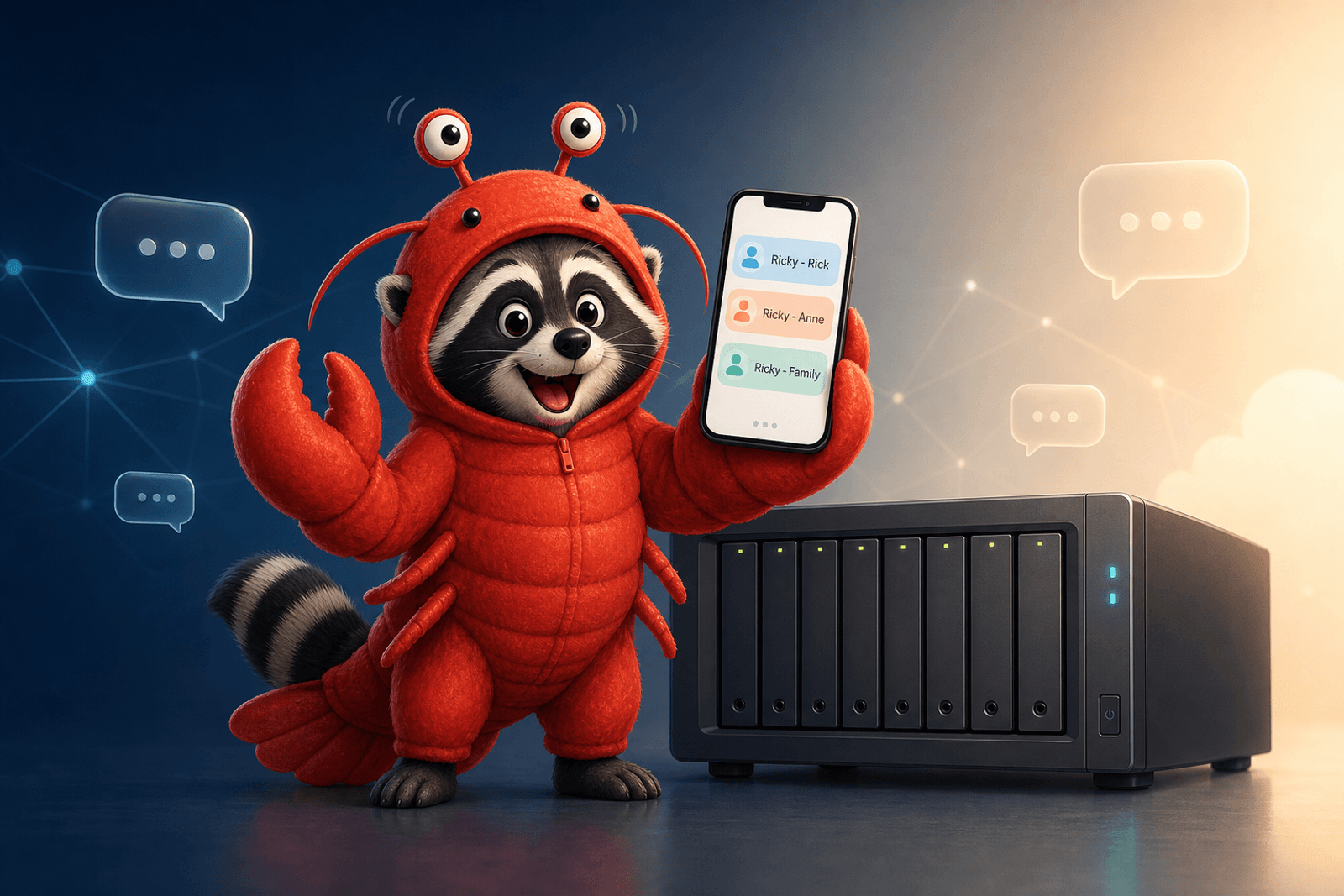
There’s a moment when a household AI assistant goes from “neat toy on one person’s laptop” to “the thing the whole family uses.” For me, that moment was tied up with a single, stubborn question:
How do I share an AI assistant with my wife — without her DMs ending up in my chat history, and without losing the ability to talk to it together about kid logistics?
After trying a few channels (Signal, Telegram, WhatsApp), I landed somewhere I didn’t expect: Synology Chat. The chat app that ships with every modern Synology NAS, that most people have probably never opened.
It turns out it’s a near-perfect fit for a self-hosted AI assistant, and OpenClaw has first-class support for it. This post walks through why I chose it, how I configured it for a multi-user household, and the architecture that gives every user their own private channel with the assistant plus a shared family channel for things that involve everyone.
The constraints
Before the solution, the constraints I cared about:
- Per-user private DMs. When I ask the assistant about something personal — a calendar conflict, a project at work — that conversation should not be visible to my wife. Same for her.
- A shared family channel. When the conversation is about both of us — “what’s on the family calendar this week,” “did the kid’s progress report come in” — both of us should be in the loop and the assistant should respond to whoever speaks.
- No cloud middleman. I already self-host the NAS. Adding a third party (Signal, WhatsApp Business, Telegram) just to relay messages between two devices in the same house and a server in the same house feels absurd.
The only catch: it lives behind your LAN. So you also need Tailscale (or equivalent) to reach it from outside the house. I already had Tailscale running. If you don’t, that’s a 10-minute one-time setup.
The architecture
Here’s the shape of what I ended up with — a single OpenClaw container that the household talks to through three Synology Chat channels:

The flowing dashes trace the round-trip: you type in your My Space → Synology Chat fires the outgoing webhook to OpenClaw → OpenClaw replies through the incoming webhook → the message lands back in your My Space. Same loop for the family channel — only the Customize Name changes.
Two paths matter:
- Inbound — Synology Chat sends an outgoing webhook to OpenClaw whenever a trigger word (
/Ricky,/ask, etc.) appears in a channel. - Outbound — OpenClaw posts replies and proactive notifications via incoming webhook URLs into Synology Chat — one per channel, so the bot can post anywhere it’s been granted a webhook.
Same chat product, both directions. The magic is that each side of the integration can be installed on multiple channels independently — one outgoing webhook in each user’s “My Space” DM and one in a shared family channel; one incoming webhook per channel to give the bot a way to speak there. OpenClaw treats each channel as its own session, so conversations stay isolated.
That’s the entire multi-user trick. No special mode needed. Just install the right webhooks in the right places.
My household calls the shared channel Family. Call it whatever fits — #family, #household, #home. The naming doesn’t matter to OpenClaw; it routes by channel ID, not channel name.
How OpenClaw maps Synology Chat to sessions
OpenClaw’s mental model is built around sessions. Every distinct conversation is its own session with its own history. Two key things make this work cleanly for Synology Chat:
- A user’s “My Space” is, from OpenClaw’s perspective, a 1-on-1 DM. The session is keyed on the user’s numeric Synology user ID. My messages and my spouse’s messages create different sessions with totally separate histories.
- The shared family channel is a group session. OpenClaw knows multiple people might speak, only responds when explicitly addressed (via a trigger word), and treats the channel itself as the session identity.
Two practical consequences:
- Privacy by default. Nothing I say in my own DM is reachable from my wife’s DM. Different session, different memory window.
- Family context stays in the family channel. When we talk to it about something the whole family cares about — Friday’s dinner plan, the kids’ school calendar — that conversation lives in the family channel and we can both scroll back to see what was said.
Inside OpenClaw config, the same idea is expressed as one account per channel. Each request that hits the gateway picks an account based on the URL path the outgoing webhook fired against, validates it against that account’s token, and sends the reply through that account’s incoming webhook URL. Visually:

Same gateway process, three logical “voices.” The persona of each one (Ricky - Rick, Ricky - <spouse>, Ricky - Family) is the Customize Name on the matching incoming webhook in Synology Chat. We’ll wire that up next.
Step-by-step: setting it up
Prerequisite — container ↔ NAS networking. If you’re running OpenClaw in a Docker container on the same NAS as Synology Chat (most people are), the container is on a private Docker subnet and DSM’s firewall sits between it and every host service. You need to pin the container subnet in
docker-compose.ymland allow that subnet through the DSM Firewall, otherwise replies will silently fail. I wrote that up as its own post: Making Sure Your Synology NAS and OpenClaw Container Can Actually Talk. Do that first, then come back here.
1. Decide on your trigger words (and where you’ll use them)
Trigger words are how Synology Chat decides whether a message should be sent to OpenClaw. The behavior depends on the channel:
- In a 1-on-1 DM (your My Space): leave trigger words blank. Every message you type goes to the bot. No need to prefix things with
/Ricky— it’s already a private DM with the bot. - In a group channel (Family): set trigger words. Otherwise the bot tries to respond to every “morning!” between household members.
For the group channel, I picked /Ricky, /ricky, /ask, /openclaw. Pick something your household will actually remember. Verbs work well (/ask, /help). Names are fun (mine’s an AI raccoon — its name shows up in the trigger).
”Wait — why not Synology’s built-in Slash Commands?”
Fair instinct — they look more native and have a nicer autocomplete. The catch: the slash-command webhook payload doesn’t tell you which channel it was invoked from. No channel_id, no channel_name. So a /Ricky from my private My Space and a /Ricky from the family channel arrive at OpenClaw indistinguishably, and the reply goes to whichever channel the command was originally bound to. That’s exactly the privacy leak this post is about avoiding.
Fine for single-channel setups. For multi-channel, use outgoing webhooks per channel — the payload includes channel_id so OpenClaw can reply where the message actually came from. Every step below uses that pattern.
2. Create the incoming webhooks (bot → chat) — one per channel
The incoming webhook is what lets the bot post messages into a Synology Chat channel. You create one per channel the bot should be able to speak in.
In Synology Chat: click your user avatar in the top-right corner → Integration → Incoming Webhook tab → Create.
Heads up: The Integration menu is per-user. Whatever account you’re signed into Synology Chat as is the account that owns the webhooks you create. That matters for the next two steps — incoming webhooks for your My Space have to be created while signed in as you; ditto for your spouse’s My Space. (Channels you both belong to, like the family channel, can be set up by either of you.)
For each channel, fill in this dialog:
Webhook URL is auto-generated by Synology when you save. Copy it — you’ll need it for OpenClaw config in step 4.
I repeated this three times — one per channel — changing only Customize Name and Post to Channel:
| Posts to | Customize Name |
|---|---|
| My Space (mine) | Ricky - Rick |
| My Space (my wife’s) | Ricky - <her name> |
| Family channel | Ricky - Family |
Each webhook gets its own auto-generated URL — save all three, you’ll wire them into OpenClaw in step 4.
Heads up about your spouse’s My Space: Synology Chat treats each user’s “My Space” as their personal channel. Your spouse has to create their own incoming webhook from their account — you can’t reach into their My Space from yours. Walk them through it once; takes a minute. Same fields, just their name in
Customize Name.
A nice trick: per-channel bot personas
Notice the Customize Name field is set differently per channel. Same underlying agent, same brain, same memory — but the author label gives each channel a slight identity of its own. In my My Space it signs as Ricky - Rick (my personal assistant view). In the family channel it signs as Ricky - Family (the family-wide instance).
It’s a small thing, but it makes the family channel feel less like “someone DMing the bot with everyone CC’d” and more like “the family is talking to the family-aware version of the bot.”
Why one per channel? Synology Chat’s incoming webhooks are tied to a single posting channel. The webhook URL itself encodes which channel it’ll post to. So if you want the bot to speak in two channels, you need two webhooks. (No, you can’t override
Post to Channelin the API call — at least not in current DSM versions.)
3. Create the outgoing webhook (chat → bot) — one per channel
The outgoing webhook is the inverse of the incoming one: it’s what causes Synology Chat to call OpenClaw when someone uses a trigger word in a channel. You install one per channel that should be able to summon the bot.
In Synology Chat: user avatar (top-right) → Integration → Outgoing Webhook tab → Create.
For My Space DMs, I leave Trigger Words empty so the bot responds to everything I type — it’s a private 1-on-1 chat, no prefix needed.
For the Family channel, fill in trigger words so the bot only fires when explicitly addressed:
Two important details:
- Each channel gets its own URL path.
/webhook/synology-rick,/webhook/synology-spouse,/webhook/synology-family. OpenClaw uses the path to figure out which channel/account a request belongs to (so it can validate the right token and reply through the right incoming webhook). If you use the same path for two channels, you’ll get token mismatch errors and only one channel will work. - Each channel gets its own Synology-generated token. Synology won’t let you paste your own. Just hit “Refresh Token” if you need to rotate it.
Same pattern as before: your spouse has to create the outgoing webhook for their My Space from their own account. Pre-share the URL pattern with them so they don’t have to guess what to put in the URL field —
http://your-nas-or-tailnet:18789/webhook/synology-<their-name>is a good convention.
4. Wire it all up in OpenClaw
OpenClaw’s Synology Chat plugin supports multiple accounts, each tied to its own webhook path and token. The shape:
{
  channels: {
    "synology-chat": {
      enabled: true,

      // Only allow specific Synology users to talk to the bot.
      // Find the numeric IDs in DSM → Control Panel → User & Group,
      // or just send a message once and grep OpenClaw's logs.
      dmPolicy: "allowlist",
      allowedUserIds: ["<your-user-id>", "<spouse-user-id>"],

      // Sanity rate limit per user per minute.
      rateLimitPerMinute: 30,

      // One account per channel. Each one has:
      //  - its own `token`        (the Synology-generated outgoing token)
      //  - its own `webhookPath`  (so route ↔ account is 1:1)
      //  - its own `incomingUrl`  (where the bot posts replies)
      accounts: {
        rick: {
          // Rick's My Space — outgoing webhook posts here
          webhookPath: "/webhook/synology-rick",
          token: "<Synology-generated token from Rick's My Space outgoing webhook>",
          // Bot posts replies here, as "Ricky - Rick"
          incomingUrl: "https://your-nas/webapi/entry.cgi?...&token=RICK_D…OKEN",
        },
        spouse: {
          webhookPath: "/webhook/synology-spouse",
          token: "<Synology-generated token from spouse's My Space outgoing webhook>",
          incomingUrl: "https://your-nas/webapi/entry.cgi?...&token=SPOUSE…OKEN",
        },
        family: {
          webhookPath: "/webhook/synology-family",
          token: "<Synology-generated token from Family channel outgoing webhook>",
          incomingUrl: "https://your-nas/webapi/entry.cgi?...&token=FAMILY…OKEN",
        },
      },
    },
  },
}
A few things to call out:
- Tokens are NOT shared. Synology Chat generates a unique token for every outgoing webhook — you can refresh but you can’t paste your own. That’s actually fine: per-account tokens are stronger isolation than a shared secret would have been. A leaked token compromises one channel, not all of them.
- Paths are NOT shared either. If two accounts had the same
webhookPath, only the first account’s token would validate and the others would 401. Always give each account its own path. dmPolicy: "allowlist"is critical for a multi-user setup. Without it, anyone with a Synology account on your NAS could DM the bot. With it, only the numeric user IDs you list can talk to it.allowedUserIdsis a list of Synology numeric user IDs (not usernames). The fastest way to discover them: send a test message from each account, thendocker logs openclaw-gateway | grep "User not authorized"— OpenClaw logs the numeric ID of the rejected user. Add it, restart, done.
What if I only have one user / one channel?
This post is focused on the multi-user setup. If you only have one user, the OpenClaw default Synology Chat docs cover the single-account shape — see the Synology Chat channel docs.
Restart OpenClaw. Send hello from your DM (no prefix needed), you should get a reply signed by Ricky - Rick. In the Family channel, send /Ricky hello and you should get one signed Ricky - Family.
A sample prompt for the multi-user setup
OpenClaw’s default agent prompt is already reasonable, but a multi-user household setup benefits from a few extra hints — specifically, telling the assistant about the channel topology so it behaves differently in DMs vs the family channel. Drop something like this into your agents.main.systemPrompt (or wherever you keep your agent persona):
You are Ricky, a self-hosted AI assistant running on the family NAS.
You talk to the household over Synology Chat.

CHANNELS YOU LIVE IN:
- Rick's My Space — 1-on-1 DM with Rick. Treat as private. He's the
  primary operator and most technical setup questions come from him.
- <Spouse>'s My Space — 1-on-1 DM with Rick's spouse. Also private.
  She typically asks about calendars, kids' schedules, errands, drafting
  messages. Do not reference anything from Rick's DM in here.
- Family — group channel with both adults (and eventually kids). Treat
  as semi-public within the household. Default to neutral framing; don't
  surface things one spouse hasn't shared with the other.

BEHAVIOR:
- In DMs you can be chatty and informal. In Family, be a bit more
  concise — nobody wants a wall of text in the family group chat.
- Always respect channel boundaries. A piece of information learned in
  Rick's DM stays in Rick's DM unless he tells you otherwise.
- If someone asks about "our calendar" or "the family calendar,"
  prefer the shared Family Google Calendar over personal ones.
- If you're not sure which channel a piece of info should go in, ask.

TONE:
- Warm, helpful, a touch of dry humor. You're an AI raccoon
  (the emoji is 🦝). Don't overdo the bit, but lean into it now and
  then.
- Skip the corporate "As an AI..." disclaimers. Just help.
A few things this prompt buys you:
- Cross-DM leak prevention. Even though OpenClaw’s session isolation already prevents the model from seeing the other person’s history, an explicit rule in the prompt is cheap defense-in-depth in case context ever does cross over (logs, retrieval, etc.).
- Tone calibration per channel. A line as simple as “be a bit more concise in Family” actually changes behavior in a way that makes the family channel less annoying.
- Channel-aware tool routing. If you wire up Google Calendar or a household memory store, the prompt nudges the assistant to prefer the shared sources when speaking in Family.
- Persona. Optional but fun. Mine’s a raccoon. Yours might be a corgi. Or just “Ricky.”
5. Verifying it works (and debugging when it doesn’t)
When the bot doesn’t respond, the failure is almost always in one of five places. Walk down this list:
1. Is Synology Chat actually firing the outgoing webhook?
In Synology Chat, open the channel and type a message starting with your trigger word. If you don’t even see Synology Chat try to do something (no momentary indicator, no error), the outgoing webhook isn’t installed on that channel. Re-check that you created it in the right channel.
2. Is the request reaching OpenClaw?
From the NAS shell or from inside the OpenClaw container:
docker logs openclaw-gateway --tail 100 | grep -i synologyIf you see nothing after sending a message, the request never arrived. Two common causes:
- The URL in the outgoing webhook is wrong (typo’d path, wrong port, wrong host)
- The container’s firewall rules don’t allow the NAS to reach port 18789 (covered in the networking prerequisite post)
3. Is the token matching?
If you see Invalid token in the OpenClaw logs, the secret in the outgoing webhook doesn’t match the token for that account in OpenClaw config. The most common cause: the outgoing webhook is posting to a path that’s registered to a different account (whose token doesn’t match). Double-check that each outgoing webhook’s URL points at the same path you set in accounts.<id>.webhookPath, and that the token next to it in Synology Chat matches the one in OpenClaw config. If you can’t get a clean read on the token, hit “Refresh Token” in the Synology webhook UI, copy the new value into OpenClaw config, and restart.
4. Is the user allowed?
If you see User not authorized: <some-number>, that’s a numeric Synology user ID that isn’t in allowedUserIds. Add it and restart OpenClaw. This is also how I discovered my own numeric user ID the first time — send a message, read the log, copy the ID.
5. Is the reply path working?
If OpenClaw says it processed the message but no reply shows up in the channel, the incoming webhook URL in OpenClaw is wrong or has been regenerated. Open the incoming webhook in Synology Chat, copy the URL fresh, paste it back into OpenClaw config, restart.
A quick smoke test from the command line
You can also poke the incoming webhook directly to confirm the bot can post:
curl -X POST 'https://your-nas/webapi/entry.cgi?api=SYNO.Chat.External&method=incoming&version=2&token=***' \
  -H 'Content-Type: application/x-www-form-urlencoded' \
  --data-urlencode 'payload={"text": "hello from curl"}'
If that posts a message into your channel, the outbound path is fine and the problem is somewhere inbound (steps 1–4). If it errors, you’ve got an incoming-webhook problem to fix.
6. Mobile access via Tailscale
The Synology Chat mobile apps connect to the NAS by hostname. If your Tailscale node has a hostname like your-nas.tailnet-name.ts.net, configure the Synology Chat app:
With Tailscale active on the phone, both apps work everywhere — at home, on cellular, at a friend’s house. The traffic never traverses a third-party messaging cloud.
Two-factor tip: If you have DSM 2FA enabled (you should), the DS Auth app is where you tap the OTP entry at the bottom to reveal the 6-digit code. Not obvious the first time.
Security & token hygiene
A few habits that have saved me time:
- Treat outgoing webhook tokens like passwords. Each outgoing webhook has its own Synology-generated token. If one leaks (you screenshot it into a blog post, you paste it in a chat by accident), regenerate just that one: open the outgoing webhook in Synology Chat → Refresh Token → paste the new value into the matching
accounts.<id>.tokenin OpenClaw config → restart. - Same goes for incoming webhook URLs. The token is embedded in the URL. Anyone with that URL can post arbitrary messages into your channel as the bot. Treat the URL itself as a secret.
- Keep
dmPolicy: "allowlist"always. If you accidentally enable the bot for"*", anyone who can DM you on your NAS can now run your AI on your dime. Allowlist is the safe default. - Don’t commit your
openclaw.jsonto a public repo. Or if you do, move tokens and incoming URLs to environment variables (e.g.SYNOLOGY_CHAT_RICK_TOKEN,SYNOLOGY_CHAT_FAMILY_INCOMING_URL) and gitignore the file with the real values. - NAS firewall: since the NAS is reachable from Tailscale, audit your DSM firewall to make sure only the right networks can reach port 5001 (Chat) and the OpenClaw port (18789 in my setup). Tailnet-only is the sweet spot.
None of this is unique to Synology Chat — it’s the same hygiene that applies to any webhook-driven integration — but having it in one place is useful.
How conversations actually feel
A typical day with this setup:
- Both of us in the family channel:
/Ricky any school papers came in for the kids this week?→ assistant replies in the channel, both of us see it. - Me in my “My Space”:
what's on my calendar today?→ no/Rickyprefix needed, the bot responds to everything in my DM. Knows my context, my preferences. - Spouse in her “My Space”:
help me draft an email to the school→ same deal, just talks to the bot directly, totally separate session from mine. - Proactive notifications (a grade dropped, a calendar conflict) → bot posts directly to whichever channel makes sense. Mine goes to my DM, family stuff goes to the family channel.
The “right channel for the right thing” pattern emerges naturally because each conversation is physically in a different channel, not just logically separated. It feels like having a thoughtful colleague who knows when to email you and when to copy the team.
Trade-offs and honest caveats
Nothing’s free:
- Synology Chat is fine, not great. No DM threads, weak search, limited reactions. Good enough for an AI assistant; not a Slack/Discord replacement.
- Tailscale (or equivalent) is required for mobile. Without it, the apps only work on your LAN.
- One incoming webhook per new channel. Add a kids-only channel later, you’ll add another webhook + account block.
- DSM upgrades can shuffle integration settings. Keep your webhook URLs and tokens backed up.
- Chat history lives on the NAS. Make sure that volume is in your backup plan.
- No NAS, no bot. If the NAS reboots at 3 AM, the assistant is silent until it’s back.
What I didn’t do (and why)
- One OpenClaw container per user. Maximum isolation — a second container with its own config, OAuth tokens, and memory store, pointed at the spouse’s My Space. Skipped it: my wife and I share a Google account and most of our digital life, so per-session isolation inside one OpenClaw is plenty. If your household needs genuinely separate identities (different employers, different threat models), the multi-container shape is cleaner. The Synology Chat side of this article doesn’t change.
- Public chatbot deployment. Synology Chat scales to a household, not a company. Use Slack or Teams for that.
- Bridges to Signal/WhatsApp/etc. Possible, but every bridge is more surface area. The point of this setup is keeping everything on one NAS.
Why this beat the alternatives
| Channel | Verdict |
|---|---|
| Signal | Phone-number-bound bot identity, flaky delivery, library churn. Pulled the plug. |
| Telegram | Easy, but everything routes through Telegram’s cloud — not really self-hosted anymore. |
| Bot setup is a labyrinth, Meta wants business verification, cloud middleman. | |
| Webchat | Fine on desktop, not realistic for two phones + ambient access. |
| Synology Chat | Already on the NAS, native mobile apps, no cloud middleman, multi-channel = multi-user. |
Not the best chat app — the closest one to where the assistant already lives. Self-hosting is about keeping the data path short.
Wrap-up
If you’re running OpenClaw on a Synology NAS with more than one person in the house, this is a 30-minute setup:
- One incoming webhook per channel (per-channel custom name = per-channel persona).
- One outgoing webhook per channel with its own path + Synology-generated token.
- OpenClaw with
dmPolicy: "allowlist"and the numeric user IDs of the people you trust. - Tailscale for mobile access without exposing the NAS publicly.
Result: a self-hosted AI that’s private when it should be, shared when it should be, and not beholden to a messaging cloud.
Next post: wiring the same setup to send proactive cron-driven notifications (grades, calendar) to the right person in the right channel.
References & further reading
- OpenClaw — Synology Chat channel docs (official): docs.openclaw.ai/channels/synology-chat
- OpenClaw on GitHub: github.com/openclaw/openclaw
- OpenClaw plugin reference — Synology Chat: docs.openclaw.ai/plugins/reference/synology-chat
- Synology Chat product page: synology.com/dsm/feature/chat
- Tailscale for mobile access to your LAN: tailscale.com
- OpenClaw community Discord: discord.com/invite/clawd