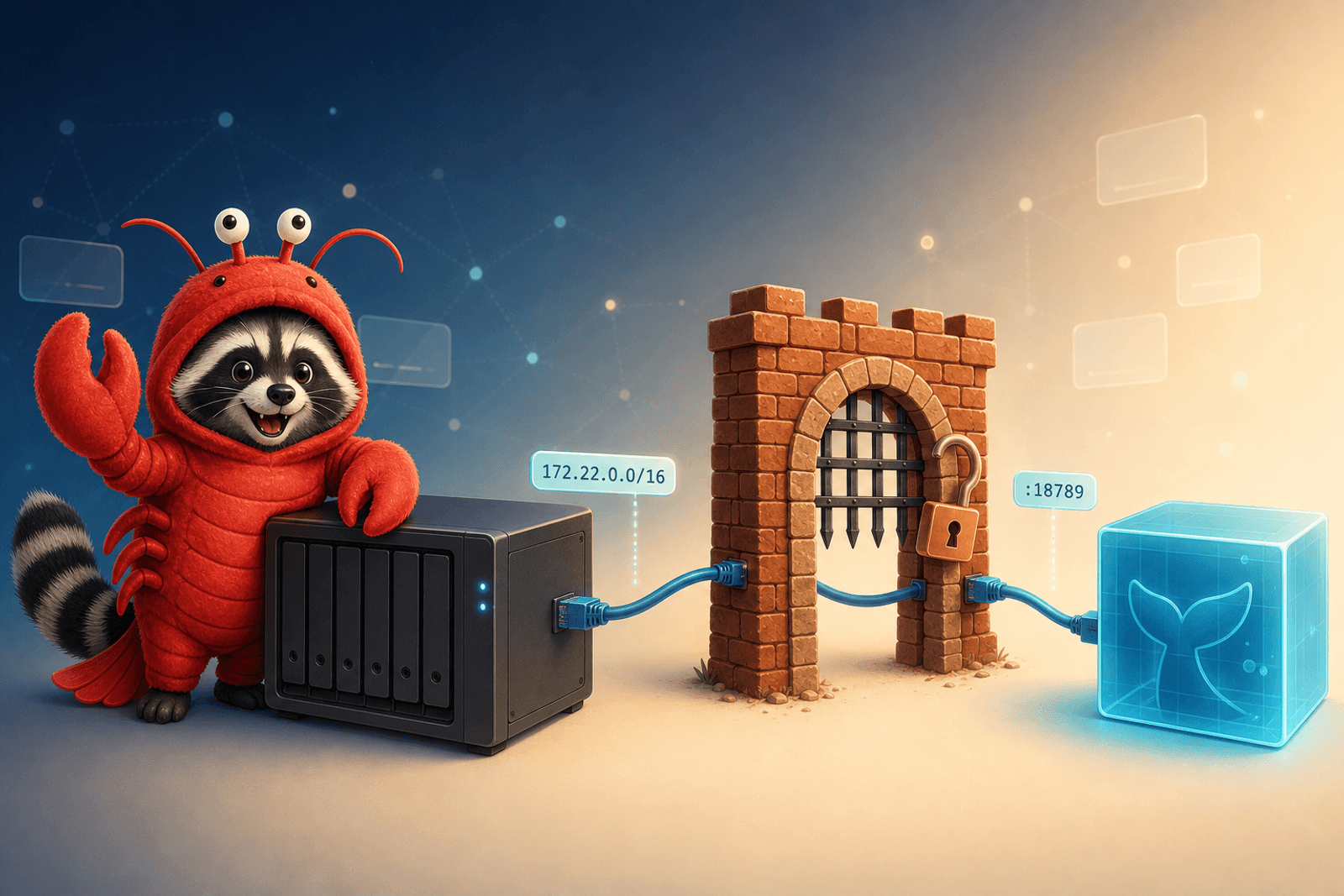
If you’re running OpenClaw in a Docker container on a Synology NAS — and you want it to interact with anything on the NAS (Chat, Drive, the DSM API, Photos, your own services running in other containers) — there’s a setup tax that catches almost everyone exactly once: the container and the host are on different networks, and DSM’s firewall sits between them.
This post is the prerequisite I keep ending up needing for every other “OpenClaw on Synology” article. Two things to nail down. Both take five minutes. Both will silently break things if you skip them.
The shape of the problem
When OpenClaw runs as a Docker container on Synology DSM, you have two networks in play on the same physical box:
- The host network — your NAS’s LAN address, e.g.
192.168.1.<x>. This is where DSM, Chat, Drive, the API, and any host-installed packages live. - A Docker bridge network — a private subnet like
172.x.x.xthat only the containers see. OpenClaw lives here.
Outbound from the container to the internet works out of the box (NAT). Outbound from the container to the NAS itself is where things go sideways: that traffic looks, from DSM’s perspective, like it’s coming from an unknown 172.x.x.x source — and DSM’s firewall doesn’t trust it by default.
The classic failure mode looks like this:
- OpenClaw boots fine.
- It can reach the public internet (LLM APIs, web search, GitHub).
- It cannot reach
https://192.168.1.<x>:<dsm-port>(DSM API),http://192.168.1.<x>:<api-port>/webapi/...(any of the SYNO.* APIs — Chat, Drive, Photos), or any other container on the host that you haven’t explicitly bridged. - Logs say “connection timed out” or “no route to host”, or worse, the request just silently sits there.
Two fixes. Do both.
Fix 1: Pin the container subnet
By default Docker hands out whatever subnet it wants from the bridge pool. That subnet can change every time you redeploy the stack. Mine drifted from 172.21.0.0/16 to 172.22.0.0/16 after one Portainer redeploy and silently broke the firewall rule I’d written for the old subnet. Cue an afternoon of “why isn’t this working anymore.”
Pin it in your docker-compose.yml:
networks:
  default:
    ipam:
      config:
        - subnet: 172.22.0.0/16
Pick whatever subnet you want — just commit to one and write it down. The exact value doesn’t matter; what matters is that it stops drifting between rebuilds.
After redeploying, confirm the container actually picked up the pinned subnet:
docker inspect <container-name> | grep -A2 IPAddress
# IPAddress should be inside 172.22.0.0/16
Fix 2: Allow the container subnet through the DSM Firewall
DSM’s firewall sits between the container bridge and the rest of the host. If you’ve turned the firewall on (you should have), the container can’t reach DSM services until you whitelist its subnet.
In DSM: Control Panel → Security → Firewall → edit your active profile → Create a rule that allows the container subnet on all ports/protocols. Mine looks something like this (other rules redacted — this is your firewall, every list is different):
| Enabled | Ports | Protocol | Source IP | Action | |
|---|---|---|---|---|---|
| ≡ | ✓ | All | All | 172.22.0.0/255.255.0.0 | Allow |
| ≡ | ✓ | …… | …… | …… | Allow |
| ≡ | ✓ | …… | …… | …… | Allow |
| ≡ | ✓ | …… | …… | …… | Allow |
| ≡ | ✓ | …… | …… | …… | Allow |
| ≡ | ✓ | …… | …… | …… | Allow |
| ≡ | …… | …… | …… | Deny | |
| ≡ | …… | …… | …… | Allow |
The row that matters is the highlighted one: Source IP 172.22.0.0/255.255.0.0 → All ports → Allow. That’s the OpenClaw container subnet from the compose file above. Same /16 mask, just expressed in the dotted-decimal form DSM’s UI prefers.
A few things worth knowing about how DSM applies these rules:
- Order matters. The firewall walks rules top-down and stops at the first match. If a “Deny All” sits above your container-subnet “Allow”, the Allow never fires. Drag the container rule near the top.
- “All interfaces” vs per-interface. Rules in “All interfaces” are evaluated first; if none match, DSM falls through to the per-interface tab. For container traffic to host services on the same machine, “All interfaces” is what you want.
- Default action. If nothing matches anywhere, DSM applies the profile’s default action. If yours defaults to “Deny”, forgetting the Allow rule = silent failure.
Verify the container can actually reach the host
Don’t trust the firewall UI to tell you the truth — test from the container’s perspective:
# Replace 192.168.1.<x> with your NAS's LAN IP and <api-port> with the DSM web port
docker exec <container-name> curl -sS -o /dev/null -w "%{http_code}\n" \
  http://192.168.1.<x>:<api-port>/webapi/query.cgi?api=SYNO.API.Info

# Expect: a 200 (or at least a real HTTP response). Connection timeout = firewall is still blocking.
If that returns a real status code, the container ↔ host path is open and you can move on. If it times out, the rule didn’t take — re-check the subnet matches what docker inspect reports, and that the rule is above any “Deny all” in the firewall list.
Don’t use ad-hoc iptables
Tempting shortcut: SSH in and run iptables -A INPUT -s 172.22.0.0/16 -j ACCEPT. Don’t. DSM rebuilds iptables from the Firewall config on every reboot and on most package updates, so manual rules vanish without warning. Always use the DSM Firewall UI — those rules are the ones that actually persist.
(Same logic applies to ufw, firewalld, or any other host-level tool: DSM’s firewall stack is authoritative on the NAS, and it doesn’t know about anyone else’s rules.)
Bonus: surviving a container rebuild
A few additional things worth doing in the same setup pass, because they all come up the first time you redeploy:
- Pin a static IP if you need one. Subnet pinning gives you a stable network; if you also need a stable IP (e.g. for a more specific firewall rule or a reverse proxy upstream), set it explicitly in compose:
services: openclaw: networks: default: ipv4_address: 172.22.0.10 - Use the DSM Firewall UI, not
docker network create --subnet, for whitelisting. The compose file owns the network; DSM owns the firewall. Mixing them up is how you end up with a “fixed” subnet that the firewall still doesn’t trust. - Document the subnet next to the compose file. A one-line comment in
docker-compose.yml(# subnet must match DSM Firewall rule "container-allow") saves future-you twenty minutes when you wonder why one number is hardcoded in two places.
Wrap-up
Two changes:
- Pin the container subnet in
docker-compose.ymlso it doesn’t drift on rebuild. - Add an Allow rule for that subnet in DSM Firewall so the container can reach host services.
Do both, do them once, and OpenClaw can talk to anything else running on the NAS — through every redeploy, every DSM update, every Portainer “Recreate”. This is the foundation every other “OpenClaw on Synology” post (Chat integration, Drive sync, DSM automation, container-to-container) quietly assumes is already done.
References & further reading
- Synology DSM — Firewall settings: kb.synology.com/DSM/help/DSM/AdminCenter/connection_security_firewall
- Docker Compose — Networking reference: docs.docker.com/compose/networking
- OpenClaw on GitHub: github.com/openclaw/openclaw