Connecting to Dataverse using PowerShell can be very helpful for data migrations and use within Azure DevOps. Connecting to an instance in a non-interactive way can be tricky though. This article will provide you the links you need for creation and App registration and adding the app user to your environment. You can then utilize the script provided to call Web API requests including ones you define using the new Custom API functionality now available.
The script was written so that it is not dependent on any outside libraries such as the Microsoft.Xrm.Tooling connector. This is helpful in situation where involving an outside library will slow down your deployment time by having to be approved in a change control board.
If utilizing an outside code library is not a concern you can create a connection to Dataverse utilizing the Microsoft.Xrm.Tooling connector Get-CrmConnection cmdlet.
Create App Registration
The first thing to do is create an App Registration within Azure AD for Dataverse. To do this follow the instructions Microsoft has provided.
Add App User to Dataverse
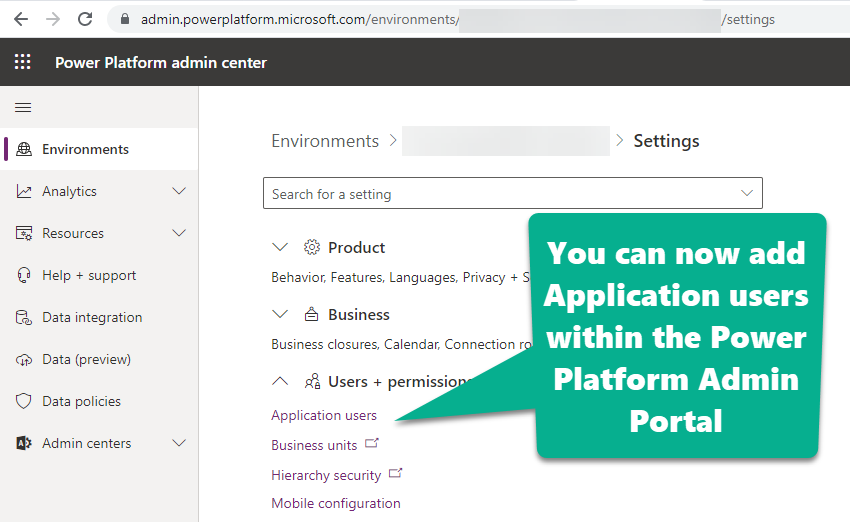
Next add an Application User to Dataverse. To do this follow the instructions Microsoft has provided. Application users additional are also now available within the Power Platform Admin Portal
PowerShell Script
Utilize the script below to connect get the Authorization token and make any Web API calls you want. The Web API call in this script just pulls back the fullname of the first 10 contacts in the system. If you want to view this file in GitHub click here.
<#
	.SYNOPSIS
    Connect to Dataverse and run Custom API Function

	.NOTES
    Author     : Richard Wilson

    .PARAMETER $oAuthTokenEndpoint
    The v2 OAuth endpoint for the App registration. This can be found by opening the App registation and
    clicking the Endpoints button in the Overview area.  Copy the OAuth 2.0 token endpoint (v2) url.

    .PARAMETER $appId
    The Application (client) ID of the App registration

    .PARAMETER $clientSecret
    The client secret generated within the App registration

    .PARAMETER $dataverseEnvUrl
    The url of the Dataverse environment you want to connect to
#>

param
(
    [string] $oAuthTokenEndpoint = 'https://login.microsoftonline.com/{YourTenantId}/oauth2/v2.0/token',

    [string] $appId = 'xxxxxxxxxx',

    [string] $clientSecret = 'xxxxxxxxxxx',

    [string] $dataverseEnvUrl = 'https://{YourEnvironmentId}.crm.dynamics.com'
)

##########################################################
# Access Token Request
##########################################################

# OAuth Body Access Token Request
$authBody =
@{
    client_id = $appId;
    client_secret = $clientSecret;
    # The v2 endpoint for OAuth uses scope instead of resource
    scope = "$($dataverseEnvUrl)/.default"
    grant_type = 'client_credentials'
}

# Parameters for OAuth Access Token Request
$authParams =
@{
    URI = $oAuthTokenEndpoint
    Method = 'POST'
    ContentType = 'application/x-www-form-urlencoded'
    Body = $authBody
}

# Get Access Token
$authRequest = Invoke-RestMethod @authParams -ErrorAction Stop
$authResponse = $authRequest

##########################################################
# Call Dataverse WebAPI using Authentication Token
##########################################################

# Params related to the Dataverse WebAPI call you will be making.
# These need to be in single quotes to ensure they are not expanded.
$uriParams = '$top=5&$select=fullname'

# Parameters for the Dataverse WebAPI call which includes our header
# that carries the access token.
$apiCallParams =
@{
    URI = "$($dataverseEnvUrl)/api/data/v9.1/contacts?$($uriParams)"
    Headers = @{
        "Authorization" = "$($authResponse.token_type) $($authResponse.access_token)"
    }
    Method = 'GET'
}

# Call the Dataverse WebAPI
$apiCallRequest = Invoke-RestMethod @apiCallParams -ErrorAction Stop
$apiCallResponse = $apiCallRequest

#Output the results
Write-Host $apiCallResponse.value