Posts

Showing posts with the label Windows Server 2008R2

An error occurred while applying security information to

While attempting to move files from a hard drive I recovered I kept getting the following error on a specific set of files. An error occurred while applying security information to {G:\Folder} Failed to enumerate objects in the container. Access is denied. In order to fix it did the following. -Open a Command Prompt "As Administrator" -Run the following commands: takeown /f "G:\folder" /r /d y icacls "G:\folder" /grant administrators:F /T

Install/Update Certificate for Remote Desktop Gateway

  To import a certificate to the RD Gateway server in the (Local Computer)/Personal Store Open the Certificates snap-in console. If you have not already added the Certificates snap-in console, you can do so by doing the following: Click Start , click Run , type mmc , and then click OK . If the User Account Control dialog box appears, confirm that the action it displays is what you want, and then click Continue .. On the File menu, click Add/Remove Snap-in . In the Add or Remove Snap-ins dialog box, in the Available snap-ins list, click Certificates , and then click Add . In the Certificates snap-in dialog box, click Computer account , and then click Next . In the Select Computer dialog box, click Local computer: (the computer this console is running on) , and then click Finish . In the Add or Remove Snap-ins dialog box, click OK . In the Certificates snap-in console, in the console tree, expand Certificates (Local Computer) , and then click Personal . Right-click t...

Hibernation Mode With Windows Server 2008 and Hyper-V

On occasion I need to run Hyper-V for testing on my laptop.  Most of the time though I would love to have the power management function such as hibernation which is disabled by Hyper-V.  In order to get around this I have updated the following registry key which disables Hyper-V on startup. [HKEY_LOCAL_MACHINE\SYSTEM\CurrentControlSet\Services\hvboot]"Start"=dword:00000003 Now when I want to run Hyper-V I just click on a .bat file on my desktop which contains the following commands.  net start hvboot net start vmms net start nvspwmi net start vhdsvc PAUSE Now that you have enabled Hyper-V the power management features will no longer be available until you reboot the system.  This isn't exactly a fix but it's a great workaround.

Windows Server 2008R2 VMs Shut Down After 1 to 2 Hours

Image
When created a lab environment to test ADFS 2.0 I utilized the Windows 2008R2 VM baselines distributed by Microsoft.  After a few days I was told that I had to activate.  The VMs included a 180 day license for use but I didn't feel like adding another network adapter into Hyper-V to connect them to the internet.  I started having issues though where the servers would shut down every hour or so.  I though that maybe there was a memory issue and Hyper-V was shutting them down in order to free up RAM.  Turns out that if Server 2008R2 is not activated it automatically shuts down after a period of time.  After connecting the server to the internet and activating them the problem went away. Finally the madness of the unknown shut downs has ended :)

CryptographicException Error Connecting SharePoint 2007 and ADFS 2.0 Using Domain App Pool User with SharePoint

Image
When attempting to connect ADFS 2.0 and SharePoint 2007 most of the documentation assumes you are using the NetworkService account to run the application pools for the SharePoint content web applications.  In a real world environment though a domain user is probably running the app pools. Tech Specs: SharePoint Version: 2007 ADFS Version: 2.0 Server OS: 2008R2 ADFS URL: https://lab-adfs.defenseready.local/ SharePoint 2007 URL: https://ext.defenseready.local/ SharePoint App Pool User: defenseready\spapppool What Happens: Users opens the browser and navigates to the site.  Enter user information and click Sign In  The user now is presented with the error that An unexpected error has occurred.  How to diagnose: In order to diagnose we will need to update the web.config for the SharePoint site. First find the CallStack attribute and set it to true Secondly change the customErrors mode attribute to Off Error: When we repeat the steps ...

Install XPS Viewer for Windows Server 2008R2

Image
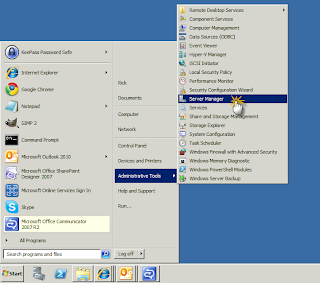
If you need to install the XPS viewer on Windows Server 2008R2 just follow these directions. 1. Open the Server Manager for the computer. 2. Click on Add features .   3. Scroll down to the XPS Viewer selection and click the check box.  4. Click the Install button.  5. After the installation has completed click the Close button.

Microsoft Forefront Client Install Wihtout Centralized Server

I was recently looking around for an Anti-Virus solution for Windows Server 2008.  I had tried downloading Microsoft Forefront Client before but when I ran the setup it wanted me to install a ton of server components... so where is the client part of all this?  What I wanted was a simple anti-virus software that uses windows update to get all my new virus definitions. To do this just run the install the client from the cd using the /NOMOM switch.  This install the client but uses Windows Update to get all the virus definitions. Open a Command Prompt using the "Run as administrator" option.  Then run one of the following commands based upon your server OS being 32 or 64 bit. 32-bit [CD]:\CLIENT\CLIENTSETUP.EXE /NOMOM 64-bit [CD]:\CLIENT\X64\CLIENTSETUP.EXE /NOMOM